Creating and managing passwords has become an essential part of everyday life. From email accounts and social media to online banking, shopping platforms, business tools, and cloud storage, almost every digital service requires a password. With so many accounts to manage, it can be tempting to reuse familiar passwords or create simple combinations that are easy to remember. However, these habits can put your personal information at risk.
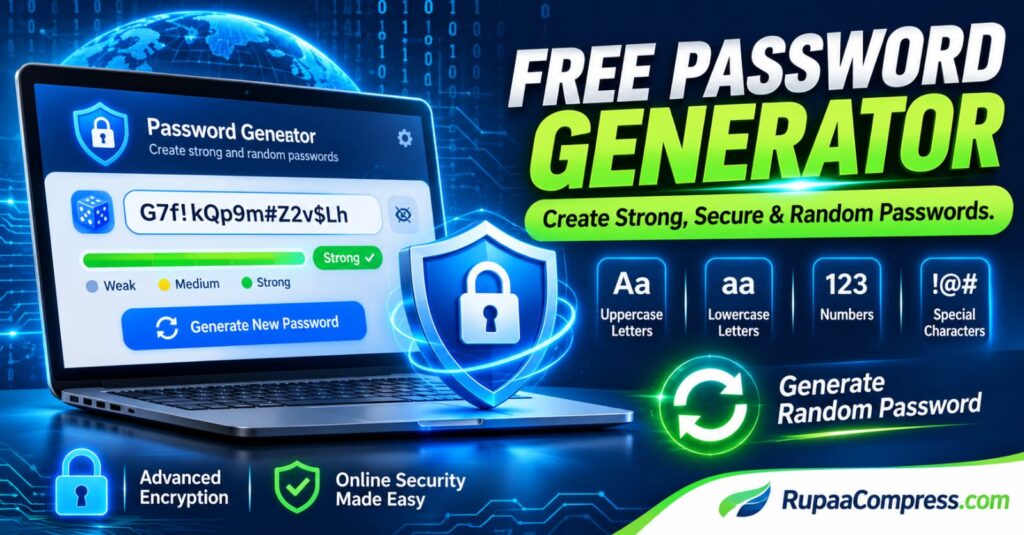
A free password generator offers a simple way to create strong, random, and unique passwords without relying on predictable words, birthdays, names, or common character patterns. By combining uppercase letters, lowercase letters, numbers, and special characters, you can generate passwords that are more difficult for attackers to guess.
Whether you are creating a new account, updating an existing password, or improving your online security, using a reliable password generator can help make the process faster and more consistent.
In this guide, you’ll learn how password generators work, what makes a password strong, which character types to use, how to choose the right password length, and how to manage your passwords safely. We’ll also explore practical ways to protect your privacy when preparing website graphics and tutorial images.
What Is a Free Password Generator?
A free password generator is a tool that automatically creates passwords using a combination of characters selected according to your preferences. Instead of thinking of a password yourself, you can generate a random sequence containing letters, numbers, and symbols.
Many password generator tools allow you to customise the password before creating it. You may be able to choose its length, select which character types to include, and generate new combinations until you find one that meets your requirements.
For example, a password generator might create a combination like:
N7!qL2@vX9#pR5z
This type of password is less predictable than common choices such as a name followed by a birth year or a familiar word with a few numbers added.
A good password generator should make it easy to:
- Generate random password combinations quickly.
- Select uppercase and lowercase letters.
- Include numbers and special characters.
- Adjust the password length.
- Create a different password for every account.
- Copy the generated password conveniently.
Instead of spending time inventing combinations, you can create a new password in seconds and focus on keeping your accounts secure.
Why You Should Use a Strong Random Password
Passwords are often the first line of defence protecting your personal information. Weak or reused passwords can make it easier for attackers to access accounts, particularly when login credentials have been exposed in a data breach.
1. Reduce the Risk of Password Guessing
Simple passwords often follow predictable patterns. Common words, names, keyboard sequences, and number combinations can be easier for attackers to guess using automated techniques.
For example, passwords based on patterns such as Password123, Welcome2026, or a person’s name and birthday may provide less protection than users expect.
A random password avoids familiar patterns and makes guessing more difficult, especially when it is sufficiently long and generated using a secure random process.
2. Protect Multiple Online Accounts
Many people use the same password for email, social media, shopping, and other services. This creates a serious problem if one website experiences a data breach.
Attackers may try leaked credentials on other websites in a technique commonly known as credential stuffing.
Using a unique password for every account helps prevent a breach on one service from automatically compromising your other accounts.
3. Improve Your Everyday Digital Security
Strong passwords are useful for more than banking and email. They can help protect:
- Social media profiles
- Online shopping accounts
- Work and business accounts
- Cloud storage
- Website hosting dashboards
- Streaming subscriptions
- Personal devices and applications
A free random password generator makes it easier to maintain unique credentials without creating passwords based on personal information.
Character Types That Make Passwords Stronger
The character options displayed in a password generator allow you to customise the combinations it creates. Understanding these options helps you choose a password that balances security and compatibility.
Uppercase Letters (A–Z)
Uppercase letters add variety to a password. Examples include A, B, C, and other capital letters.
When combined with lowercase letters, numbers, and symbols, uppercase characters increase the number of possible combinations a password can contain.
Lowercase Letters (a–z)
Lowercase letters are the standard letters used in everyday writing. Including them gives the generator a broad range of characters to work with.
A password containing only lowercase letters may be easier to guess if it uses common words or predictable sequences. Randomly selected lowercase letters can be more useful, particularly when combined with other character types and sufficient length.
Numbers (0–9)
Numbers add another layer of variation to password combinations.
Rather than using a predictable sequence such as 123456 or 2026, a password generator can place digits randomly throughout the password. This helps avoid common patterns that people often create manually.
Special Characters (!@#$)
Special characters include symbols such as:
! @ # $ % ^ & * ( ) _ +
Depending on the website, you may also be able to use punctuation marks and other symbols.
Including special characters can increase the number of possible combinations. However, the most important factors remain password length, randomness, uniqueness, and the quality of the generator. A long, randomly generated password can be highly effective even if a particular website does not accept every symbol.
How Password Length Affects Password Strength
Password length is one of the most important factors influencing how difficult a password may be to guess.
Short passwords have fewer possible combinations, particularly when they use a limited selection of characters. Longer random passwords can dramatically increase the number of possible combinations.
For everyday accounts, a password of at least 16 characters is a good target when supported. For accounts that protect sensitive information, using longer passwords can be beneficial.
Consider these examples:
| Password | Security concern |
|---|---|
12345678 | Common numeric sequence |
summer2026 | Predictable word and year |
John@123 | Personal information and common pattern |
qT7!mP9#L2vX8@cR | Random, longer, and varied |
The final example is only an illustration of a password format, not a password you should use for an actual account.
A longer password with genuinely random characters generally offers better protection against guessing than a short password containing a few symbols.
How to Use a Free Password Generator
Generating a strong password doesn’t need to be complicated. With the right settings, you can create a unique password in just a few steps.
Step 1: Choose Your Password Length
Start by selecting how many characters you want your password to contain.
If the service allows it, choose 16 characters or more for everyday accounts. You can choose a longer combination for accounts that support it and where additional security is appropriate.
Avoid making passwords unnecessarily short just because they are easier to type.
Step 2: Select the Character Types
Choose the character options available in your generator.
For a strong general-purpose password, consider enabling:
- Uppercase letters
- Lowercase letters
- Numbers
- Special characters
Using a variety of character types can increase the number of possible combinations, assuming the generator selects characters randomly.
Step 3: Generate a Random Password
Click the Generate Password button to create a new combination.
If the generated password doesn’t meet your requirements, generate another one. Avoid modifying the password with predictable patterns such as adding your birth year, name, or a familiar sequence.
The goal is to use a genuinely random combination rather than one based on personal preferences or habits.
Step 4: Check the Password Requirements
Before using the password, check whether the website has specific requirements.
Some services restrict certain symbols, limit password length, or require particular character types. If a generated password isn’t accepted, adjust the character options or length to meet the website’s requirements.
Don’t weaken the password unnecessarily. If the service supports longer combinations, use the available options.
Step 5: Save Your Password Securely
Once you have generated your password, store it in a reputable password manager.
Password managers can help you maintain unique passwords for different services, autofill credentials where appropriate, and reduce the need to memorise complicated combinations.
Avoid saving passwords in unprotected documents, notes, spreadsheets, or messages that other people may be able to access.
Understanding Password Strength: Weak, Medium, and Strong
Some password generators include a visual strength meter that labels passwords as Weak, Medium, or Strong. These indicators can help users understand how their password choices affect security.
Weak Passwords
Weak passwords are usually short, predictable, reused, or based on commonly known information.
Examples include simple sequences, common words, names, and familiar keyboard patterns.
Weak passwords should be avoided, especially for email, financial services, business accounts, and social media.
Medium Passwords
Medium-strength passwords may include more characters and a mixture of letters and numbers but could still contain predictable patterns or lack sufficient length.
Adding random characters and increasing the length may improve their security.
Strong Passwords
Strong passwords are generally long, random, unique, and difficult to predict.
A strong password should not contain easily identifiable personal information or be reused on another website. A strength indicator can be helpful, but it should not be treated as a guarantee of security.
The most important habit is creating a unique password for every account and storing it securely.
Password Generator vs. Creating Your Own Password
Many people believe that adding a few numbers or symbols to a familiar word automatically creates a secure password. While it may appear complicated, predictable substitutions are often not as effective as they seem.
For example, changing a common word by replacing a letter with a number or adding an exclamation mark may still leave a recognisable pattern.
A random password generator works differently. It selects characters without relying on personal habits, favourite words, names, or familiar sequences.
| Feature | Manual password creation | Random password generator |
|---|---|---|
| Predictability | Often influenced by personal habits | Can avoid common human patterns |
| Randomness | May be limited | Can use secure random generation |
| Uniqueness | Easy to reuse | Makes unique passwords easier |
| Convenience | Requires thinking of combinations | Generates passwords quickly |
| Customisation | Depends on the user | Length and characters can be adjustable |
For most people, using a password generator together with a password manager is a more practical approach than trying to invent and remember every password manually.
Password Security Tips Everyone Should Follow
Generating a strong password is an important first step, but good password habits involve more than character combinations.
Never Reuse Passwords
Use a different password for every account. If one website is compromised, unique passwords help prevent attackers from using the same credentials to access your other accounts.
Prioritise your email, banking, social media, work accounts, and cloud storage.
Use a Password Manager
A password manager stores your credentials in an encrypted vault and helps you organise them.
It can generate passwords, autofill login forms, and notify you about certain password problems, depending on the service.
Choose a reputable password manager, protect its master password, and enable additional security features.
Enable Two-Factor Authentication
Two-factor authentication (2FA) adds an additional verification step when signing in.
Even if someone obtains your password, they may still need a second authentication factor to access your account.
Where supported, consider an authenticator app, passkey, or security key rather than relying only on SMS.
Change Compromised Passwords Immediately
If you receive a security notification, discover unusual account activity, or learn that a website has experienced a breach, change the affected password.
If you reused that password elsewhere, change it on every other account where it was used.
Watch Out for Phishing
Scammers often use fake emails, messages, and websites to trick people into entering their passwords.
Check website addresses carefully before logging in, avoid unexpected attachments, and never share one-time verification codes with someone who contacts you unexpectedly.
Protecting Your Privacy When Preparing Website Graphics
If you’re a blogger, website owner, or content creator, you may regularly prepare images for password guides, cybersecurity articles, tutorials, and website banners.
However, uploading private images to unfamiliar online tools may create unnecessary privacy risks. Screenshots can contain usernames, email addresses, account details, private messages, or other information you didn’t intend to share.
One way to reduce unnecessary exposure is to use browser-based image tools that process files locally on your device.
Why Local Browser-Based Image Processing Matters
Some image tools upload files to external servers before processing them. Others use client-side browser processing, allowing supported image operations to happen directly on your device.
Local processing can be useful when working with private screenshots, draft graphics, or personal images because files don’t need to be transmitted to a remote processing server for those operations.
For example, RupaaCompress – Free Image Compression and Resizing Tools offers tools for preparing images for website publishing.
Depending on the available features, you can use browser-based utilities to:
- Compress images to reduce file size.
- Resize images for website layouts.
- Convert images to WebP or JPEG.
- Prepare graphics for blog articles.
- Optimise images for mobile devices.
Before using any online tool with sensitive files, check how it processes your data and whether the processing is genuinely local. Browser-based tools are not automatically private simply because they run in a browser.
Step-by-Step Workflow for Password Security and Image Optimisation
Follow this simple workflow to create stronger passwords and prepare website visuals efficiently.
Step 1: Generate a Strong Password
Open your free password generator, choose an appropriate password length, select the available character types, and generate a random combination.
Step 2: Review the Password
Check the length, randomness, and website compatibility. Avoid predictable patterns and personal information.
Step 3: Store the Password Safely
Save the generated password in your password manager. Do not reuse it across different accounts.
Step 4: Enable Additional Account Protection
Activate two-factor authentication or passkeys wherever supported, especially for important accounts such as email and banking.
Step 5: Prepare Your Images
When creating graphics for your website or blog, remove private information from screenshots before editing them.
Step 6: Compress and Resize Your Visuals
Use suitable image optimisation tools to reduce file sizes and improve loading performance. For privacy-sensitive visuals, choose a tool that processes supported files locally in your browser.
Step 7: Publish With Good SEO Practices
Use descriptive filenames, relevant alt text, properly sized images, and clear article headings. Optimised visuals can improve page performance and contribute to a better visitor experience.
Frequently Asked Questions (FAQs)
What is the best free password generator?
The best free password generator is one that uses a secure random generation method, allows you to choose a suitable password length, and provides character options that match your requirements. A trustworthy generator should also explain how it handles generated passwords and whether they are stored or transmitted.
How many characters should a strong password have?
For many online accounts, 16 characters or more is a practical target when supported. Longer passwords can provide additional protection when they are generated randomly and stored securely.
Are random passwords safer than passwords I create myself?
Randomly generated passwords are generally harder to predict than passwords based on familiar words, names, dates, or personal habits. Their effectiveness depends on the randomness of the generation process, password length, and whether the password is unique.
Should I include special characters in my password?
Special characters can increase the number of possible combinations and are useful when supported by the website. However, length, randomness, and uniqueness are more important than simply adding symbols to a predictable password.
Can I use the same password for multiple accounts?
It is strongly recommended that you avoid reusing passwords. If one website experiences a breach, attackers may attempt to use the exposed credentials on other services. Unique passwords help limit the impact of such incidents.
Are online password generators safe?
Safety depends on how the generator works. Choose a reputable tool that uses cryptographically secure randomness and has a transparent approach to privacy. Avoid generators that store passwords, transmit generated credentials unnecessarily, or have unclear security practices.
Do password generators save the passwords they create?
Not all password generators operate the same way. Some generate passwords directly in your browser, while others may use server-side processing. Check the tool’s privacy information before generating credentials, particularly if you plan to use the password for a sensitive account.
Do I need to change my passwords regularly?
You don’t necessarily need to change a strong, unique password on a fixed schedule if it remains secure. However, change it immediately if you believe it has been exposed, if you detect suspicious activity, or if the service recommends a reset following a security incident.
Conclusion
Using a free password generator is one of the simplest ways to improve your online security. Instead of relying on familiar words, birthdays, or repeated passwords, you can create random, unique combinations using uppercase letters, lowercase letters, numbers, and special characters.
Choose passwords that are sufficiently long, store them in a reputable password manager, avoid reusing credentials, and enable two-factor authentication wherever possible. These habits can help protect your email, social media, shopping, banking, and work accounts against common password-related threats.
Digital security also extends to the content you create and publish online. If you’re preparing screenshots, banners, or tutorial graphics for your website, use appropriate image optimisation practices and consider browser-based tools that process files locally when privacy matters.
Building a safer digital routine doesn’t have to be complicated. A reliable password generator, a password manager, and a few consistent security habits can make protecting your online accounts much easier.