The internet makes it easier than ever to shop online, communicate, manage finances, find information, and access services from anywhere in the world. However, not every website or link you encounter is trustworthy. Fake websites, phishing pages, fraudulent online stores, and scam links are increasingly designed to look like legitimate businesses, popular platforms, and familiar services.
A link shared through an email, text message, social media post, or messaging app may appear genuine at first glance. It might use a familiar logo, professional design, or convincing language to encourage you to click. But visiting the wrong website or entering sensitive information on a fraudulent page could expose your passwords, financial details, personal information, or even your device to security risks.
Learning how to check fake websites and scam links before clicking is an important digital safety habit. By checking the website address, reviewing reputation signals, looking for security warnings, and understanding common scam tactics, you can make more informed decisions about which links to trust.
In this guide, you’ll learn how to identify suspicious websites, check unfamiliar URLs, recognise phishing attempts, understand website safety indicators, and protect your privacy while browsing online.
Why Checking Websites Before Clicking Matters
Scammers often rely on urgency, curiosity, trust, and confusion to encourage people to interact with fraudulent links. A message might claim that your account will be suspended, your parcel is waiting, your payment failed, or you have won a prize.
These messages may include links that lead to fake login pages, fraudulent payment websites, misleading downloads, or pages designed to collect personal information.
Checking links before clicking helps you recognise suspicious activity before you interact with a potentially dangerous website.
Here are a few reasons why checking unfamiliar websites matters:
- Protect personal information: Avoid entering sensitive information on websites that may be fraudulent.
- Prevent password theft: Recognise fake login pages designed to steal account credentials.
- Reduce financial risks: Avoid fraudulent shopping websites, payment scams, and fake investment offers.
- Protect your devices: Reduce exposure to malicious downloads and deceptive software installations.
- Improve browsing privacy: Be more cautious about websites that request unnecessary permissions or personal information.
A few seconds of checking a link could help you avoid a much more stressful security problem.
1. Check the Website URL Carefully
One of the easiest ways to identify a fake website is to examine its URL, also known as its web address.
Scammers frequently create domains that resemble legitimate websites. They may change a single character, add extra words, use unusual spelling, or include a familiar brand name in a misleading address.
For example, a fraudulent address might look like:
paypaI-example.com– may use a capital “I” to imitate a lowercase “l”secure-account-login-example.com– uses security-related wording to create trustbrandname-verification-example.net– adds a brand-like name to appear legitimate
These are illustrative examples, not real recommended websites.
Before opening a link, look for:
- Misspelled brand names
- Unexpected extra words
- Strange combinations of letters or numbers
- Unfamiliar domain extensions
- Subdomains that hide the actual website name
- URLs that don’t match the organisation claiming to send the message
Pay special attention to the actual registered domain. For example, in accounts.example.com, the domain is example.com. In example.com.untrusted-site.net, the actual domain is untrusted-site.net, not example.com.
If a link claims to belong to your bank, delivery company, government service, or online account, don’t assume it’s genuine just because the brand name appears somewhere in the URL.
When in doubt, open the organisation’s official website by typing its address into your browser or using a trusted bookmark instead of clicking the supplied link.
2. Check Website Reputation Before Visiting
Website reputation tools can help you assess whether an unfamiliar URL has been associated with phishing, malware, suspicious activity, or other security concerns.
A website reputation check may examine information such as:
- Known phishing reports
- Malicious software distribution
- Suspicious domain activity
- Previously reported scam pages
- Security database warnings
Reputation tools can be useful when you receive a link from an unfamiliar source or when a website appears suspicious.
However, a clean reputation result does not guarantee that a website is safe. Newly created scam websites may not have been reported or detected yet. Some malicious websites also change their URLs frequently to avoid detection.
Treat website reputation checks as one layer of protection rather than a guarantee.
3. Look for HTTPS and Security Indicators
Many legitimate websites use HTTPS to encrypt the connection between your browser and the website. You may see a padlock icon or other connection information in your browser’s address bar.
HTTPS helps protect information transmitted between your device and the website from being read or altered by certain third parties during transmission.
However, HTTPS does not prove that a website is legitimate.
Scammers can also obtain HTTPS certificates for fraudulent websites. A fake shopping website or phishing page may display a padlock even though it is designed to steal information.
When checking a website’s security status:
- Confirm that the URL is spelled correctly.
- Check whether the browser displays a security warning.
- Don’t ignore certificate or connection warnings.
- Avoid entering sensitive information if the browser reports an unsafe connection.
- Remember that HTTPS alone is not evidence that the business or website is trustworthy.
A secure connection and a trustworthy website are two different things.
4. Identify Common Signs of a Fake Website
Fake websites often share warning signs. Although some fraudulent websites are professionally designed, others contain obvious mistakes that can help you identify them.
Unrealistic Prices and Offers
If an online store advertises expensive products at unusually low prices, be cautious. A luxury product, smartphone, laptop, or branded item offered at a fraction of its normal price may be designed to attract people into a scam.
Compare the offer with prices from reputable retailers. If the deal seems dramatically different from the market price, investigate before buying.
Poor Design and Spelling Mistakes
Some scam websites contain inconsistent layouts, broken links, low-quality images, awkward language, or spelling errors.
These issues don’t automatically mean a website is fraudulent, but multiple problems may indicate that the site is unreliable.
Missing Contact Information
Legitimate businesses generally provide ways for customers to contact them.
Be cautious if a website has no meaningful contact information, a fake-looking address, unclear customer support details, or only a generic contact form.
For online stores, check whether the website provides reasonable information about shipping, returns, refunds, and customer service.
Suspicious Payment Methods
Be particularly careful when an unfamiliar seller demands payment through unusual or difficult-to-reverse methods.
Warning signs may include requests to pay exclusively through cryptocurrency, gift cards, wire transfers, or other payment methods that offer limited protection.
Whenever possible, use a payment method that provides appropriate buyer protection.
Fake Reviews and Testimonials
Scammers may display fabricated reviews to make a website appear popular or trustworthy.
Look for reviews outside the website itself. Search the business name alongside terms such as “scam,” “complaints,” “reviews,” or “fraud.”
Don’t rely entirely on testimonials published by the website you’re evaluating.
5. Check Scam Links Without Opening Them
If you receive an unfamiliar link, you don’t always need to visit the website directly to begin evaluating it.
You can start by inspecting the link’s destination.
On a Computer
If you are using a desktop computer or laptop, move your mouse over the link without clicking it. Depending on your browser, the destination URL may appear near the bottom of the window.
Check whether the displayed destination matches the website you expect.
On a Mobile Phone
On mobile devices, press and hold a link to preview its destination, where supported. Be careful not to tap through to the website.
If you aren’t sure about the link, avoid opening it and instead visit the official service directly using its known website address.
Use a Reputable URL Checking Service
Some security services allow users to submit a URL for reputation analysis. These tools may compare the link against databases of known malicious websites.
Keep in mind that submitting a URL to a third-party scanner may share that URL with the service or its security partners. Avoid submitting links containing private access tokens, password-reset codes, confidential documents, or personal information.
A link checker can provide useful information, but it cannot guarantee that every website is safe.
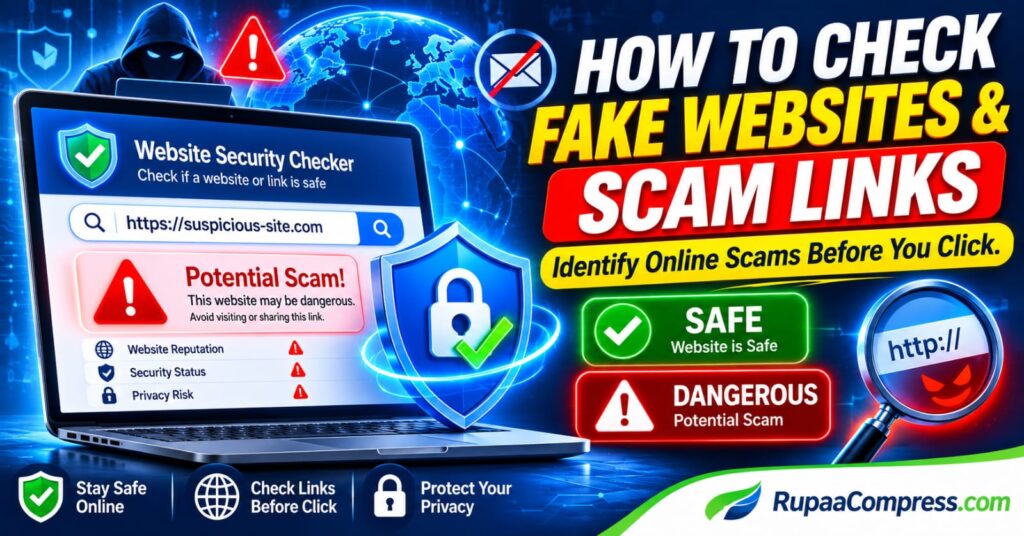
6. Understand Website Reputation, Security Status, and Privacy Risk
When evaluating a website or scam link, three important areas deserve attention: reputation, security, and privacy.
Website Reputation
Website reputation helps you understand whether a website has a history of suspicious activity or reports from security services and users.
A poor reputation may indicate phishing, fraudulent activity, malware distribution, or other concerns.
Security Status
Security status can indicate whether a website has known security problems, unsafe content, suspicious redirects, or browser warnings.
A site that triggers security alerts should be treated cautiously. Don’t bypass browser warnings simply because you want to access the page.
Privacy Risk
Privacy risk refers to how a website may collect, use, or expose your information.
Consider whether the website requests information that is unnecessary for the service it offers. Be cautious when an unfamiliar site asks for your full identity details, financial information, passwords, contact list, camera access, location, or other sensitive permissions.
Reviewing these three areas helps you make a more informed decision before interacting with an unfamiliar link.
7. Recognise Phishing Messages and Scam Links
Phishing is a common technique used to trick people into revealing sensitive information or taking actions that benefit scammers.
A phishing message may appear to come from a bank, delivery company, social media platform, employer, government agency, or well-known online service.
Common phishing messages include:
- Your account will be suspended unless you verify it immediately.
- Your package could not be delivered. Confirm your details.
- Your payment was declined. Click here to update your information.
- You have won a prize. Claim it now.
- Someone has accessed your account. Sign in to secure it.
- You have an urgent invoice that requires payment.
These messages often create urgency so you act without checking the sender or destination.
Before clicking, ask yourself:
- Was I expecting this message?
- Does the sender’s address look legitimate?
- Does the link point to the official website?
- Is the message asking for passwords, verification codes, or payment details?
- Is the language unusually urgent or threatening?
- Can I confirm the message through the company’s official app or website?
If the message feels suspicious, don’t interact with it. Navigate to the official service independently to check whether the notification is genuine.
8. What to Do if You Accidentally Click a Scam Link
Accidentally clicking a suspicious link doesn’t necessarily mean your device or account has been compromised. The level of risk depends on what happened after you opened it.
If you clicked a link but didn’t enter information, download anything, or grant permissions, the risk may be lower. Still, close the page and avoid interacting further.
If you entered your password:
- Visit the legitimate website directly.
- Change the affected password immediately.
- Change the same password on any other accounts where you reused it.
- Enable two-factor authentication.
- Review recent account activity and log out unfamiliar sessions.
If you entered financial information, contact your bank or payment provider using its official contact details and explain what happened.
If you downloaded a file:
- Don’t open it if you haven’t already.
- Delete suspicious downloads where appropriate.
- Run a scan using trusted security software.
- If you installed an unfamiliar program, disconnect from sensitive accounts and seek trusted technical support if necessary.
If you provided personal information, be alert to follow-up phishing attempts, suspicious calls, account verification requests, and identity-related scams.
Act quickly, but don’t panic. Taking the right steps can help limit potential damage.
9. Safer Browsing Habits to Protect Your Privacy
You don’t need to be a cybersecurity expert to browse more safely. Developing a few consistent habits can make a meaningful difference.
Avoid Clicking Unexpected Links
If a message contains a link you weren’t expecting, verify the request before interacting with it.
Use Strong, Unique Passwords
Create a unique password for each account and store it in a reputable password manager. Avoid reusing passwords across websites.
Enable Two-Factor Authentication
Use two-factor authentication or passkeys wherever supported, particularly for email, banking, and important online accounts.
Keep Your Browser and Devices Updated
Software updates often include security fixes. Keeping your operating system, browser, and applications updated helps reduce exposure to known vulnerabilities.
Avoid Untrusted Downloads
Don’t download applications, browser extensions, or documents from unfamiliar websites unless you have verified the source.
Review Website Permissions
Be cautious when websites request access to your camera, microphone, location, notifications, or other sensitive features.
Use Secure Networks
Avoid accessing sensitive accounts through unfamiliar or untrusted networks. When travelling, pay extra attention to public Wi-Fi networks and unexpected login prompts.
These habits help make safer browsing a routine rather than something you only think about after encountering a suspicious website.
10. Protect Your Privacy When Optimising Website Images
Website owners, bloggers, and content creators often prepare screenshots, banners, illustrations, and tutorial graphics for online publishing.
While image compression and resizing can improve page performance, uploading private images to unfamiliar third-party services may create unnecessary privacy risks.
Screenshots can contain email addresses, account usernames, private messages, browser tabs, payment information, or other sensitive details.
Why Local Browser-Based Image Tools Can Help
Some browser-based image tools process files directly on your device instead of uploading them to a remote server.
When local processing is genuinely used, your images can be compressed, resized, or converted without transmitting the original file to a third-party processing service.
This can be useful when preparing website visuals, tutorial screenshots, security guides, and personal images.
For example, you can explore RupaaCompress – Free Image Compression and Resizing Tools to prepare website graphics and reduce image sizes.
Depending on the tools available, you may be able to:
- Compress images to reduce file size.
- Resize graphics for blog posts.
- Convert images to WebP or JPEG.
- Prepare images for mobile-friendly layouts.
- Improve page loading speed.
- Optimise tutorial screenshots before publishing.
Before processing sensitive files, check the tool’s privacy policy and verify whether the specific operation is performed locally in your browser. A browser-based interface alone does not guarantee that files stay on your device.
11. Step-by-Step Workflow to Check Links and Optimise Images
Use this simple workflow whenever you encounter an unfamiliar website or prepare security-related content for publication.
Step 1: Pause Before Clicking
Don’t open unexpected links immediately. Check who sent the message and whether you were expecting it.
Step 2: Inspect the URL
Look for spelling mistakes, unusual domains, misleading subdomains, extra characters, or addresses that don’t match the organisation.
Step 3: Review Reputation and Security Signals
Use reputable URL checking tools where appropriate. Pay attention to browser warnings and suspicious website behaviour.
Step 4: Check for Privacy Risks
Avoid websites that request unnecessary personal details, sensitive account information, or suspicious permissions.
Step 5: Visit Official Websites Directly
If the link relates to banking, shopping, account verification, deliveries, or government services, open the official website independently rather than using the supplied link.
Step 6: Optimise Your Website Graphics
When preparing images for your blog, remove sensitive information and use suitable image optimisation tools. Consider local browser-based processing for private visuals.
Step 7: Publish With Proper SEO and Safety Practices
Use clear filenames, descriptive alt text, appropriately compressed images, and helpful content. Continue checking links and keeping your website resources updated.
Frequently Asked Questions (FAQs)
How can I check if a website is fake?
Check the URL for spelling mistakes, misleading domains, unusual subdomains, and unexpected characters. Review the site’s reputation, pay attention to browser security warnings, check contact and business information, and look for suspicious payment requests. No single check guarantees that a website is safe.
How do I check a scam link without clicking it?
On a computer, hover over the link to inspect its destination. On mobile, press and hold the link to preview it where supported. You can also use reputable URL reputation tools, but avoid submitting private or tokenised links to third-party services.
Does HTTPS mean a website is safe?
No. HTTPS encrypts the connection between your browser and the website, but scammers can also use HTTPS on fraudulent websites. Always check the domain, reputation, and other warning signs.
What are the most common signs of a fake website?
Common warning signs include suspicious URLs, unrealistic offers, missing contact details, poor website quality, fake reviews, unusual payment requests, urgent messages, and browser security warnings.
Can a scam link hack my phone or computer?
Some malicious links may lead to phishing pages, deceptive downloads, or exploit attempts. The risk depends on the website, your device, browser, software updates, and what actions you take. Simply clicking a link doesn’t automatically mean your device has been compromised.
Are free website checker tools reliable?
They can be useful for identifying known malicious websites, phishing pages, and suspicious links. However, results may be incomplete or outdated. A newly created scam website may not yet appear in security databases, so use multiple indicators rather than relying on one tool.
What should I do if I entered my password on a fake website?
Change the password immediately using the legitimate website or app. If you reused that password elsewhere, change those passwords too. Enable two-factor authentication, review account activity, and contact the service provider if you notice suspicious behaviour.
How can I stay safe from scam links on social media?
Avoid unexpected links, verify messages independently, check the destination URL, and don’t trust offers simply because they were shared by a friend. Their account may have been compromised. Never share passwords, security codes, or financial details through suspicious links.
Conclusion
Learning how to check fake websites and scam links before clicking is an important part of staying safe online. Fraudulent websites can imitate trusted brands, create fake login pages, advertise unrealistic offers, and use urgent messages to encourage people to reveal personal information.
Before visiting an unfamiliar website, inspect the URL, check its reputation, review security warnings, and consider potential privacy risks. Remember that HTTPS and a professional-looking design don’t automatically make a website trustworthy.
If a link appears suspicious, don’t open it or share it. Visit the official website directly, verify the information independently, and take immediate action if you have already provided sensitive details.
Safer browsing starts with small habits: checking links, protecting passwords, keeping devices updated, and being careful about what information you share.
If you’re also creating online safety guides, blog posts, or tutorial graphics, consider using browser-based image tools such as RupaaCompress to resize, compress, and prepare your visuals. When supported files are processed locally, you can optimise your images without uploading them to a remote processing server.
Stay alert, verify before you click, and make online safety part of your everyday browsing routine.