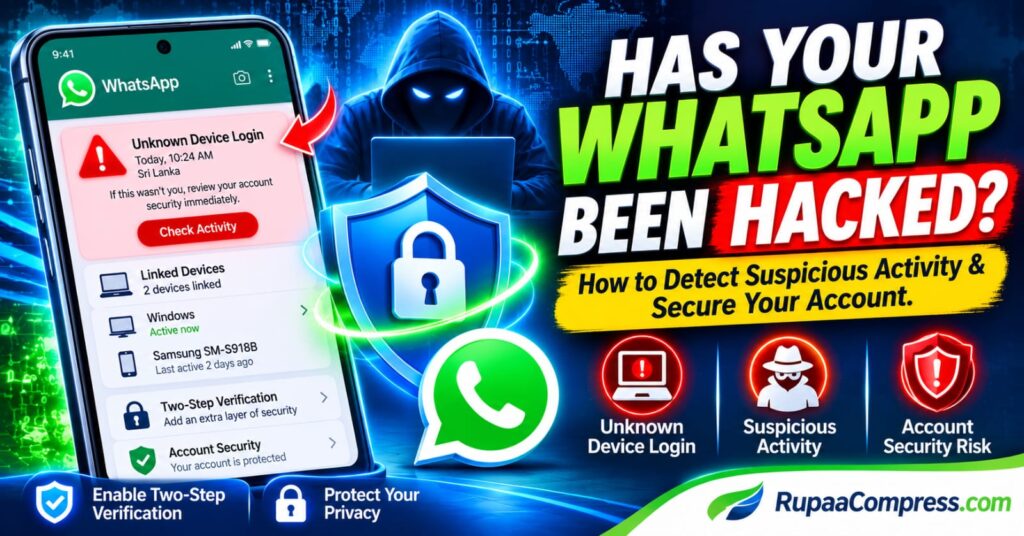
WhatsApp has become an essential part of everyday communication. People use it to stay in touch with family and friends, share photos, manage business conversations, communicate with colleagues, and exchange important information. With so much personal communication happening through messaging apps, keeping your WhatsApp account secure is more important than ever.
However, not every unusual notification or unfamiliar device automatically means your WhatsApp has been hacked. Sometimes you may have forgotten that you linked WhatsApp Web to a computer, signed in on another device, or used a shared laptop. In other situations, an unfamiliar session, unexpected verification code, or suspicious message could indicate that someone is attempting to access your account without permission.
Knowing how to tell if your WhatsApp has been hacked can help you identify warning signs early and take the right steps to protect your conversations, contacts, and personal information.
In this guide, we’ll explain the common signs of WhatsApp account compromise, how to check linked devices, what to do if someone gains access to your account, how to enable two-step verification, and practical ways to improve your messaging security.
Can Someone Hack Your WhatsApp Account?
Yes, someone may gain unauthorised access to your WhatsApp account through social engineering, stolen verification codes, malicious linking attempts, SIM-related attacks, or access to your unlocked phone.
Unlike traditional accounts that rely primarily on usernames and passwords, WhatsApp uses your phone number and verification processes to register your account. This means attackers may try to trick you into sharing a registration code or approving a device-linking request.
Common methods include:
- Verification code scams: Someone tricks you into sharing the six-digit code sent to your phone.
- Linked device abuse: A scammer convinces you to scan a QR code or approve a device connection.
- SIM swapping: Someone attempts to take control of your mobile number through your phone provider.
- Physical phone access: Someone uses your unlocked phone to access conversations or connect another device.
- Social engineering: A scammer pretends to be a friend, family member, support agent, or trusted organisation.
Understanding these methods makes it easier to recognise suspicious behaviour before your account is compromised.
10 Signs Your WhatsApp May Have Been Hacked
Not every warning sign confirms that your account has been hacked, but several unusual changes should prompt an immediate security check.
1. You Notice an Unknown Linked Device
One of the first things to check is your WhatsApp linked-device list.
WhatsApp allows you to connect compatible devices, including computers, browsers, and companion devices, so you can use your account across multiple screens.
If you see a device, browser, or session you don’t recognise, it could indicate that someone linked their device to your account without your permission.
For example, you might see a Windows computer, an unfamiliar browser, or a device activity entry that you don’t remember creating.
Don’t panic if the device name looks unfamiliar. Device names can be generic, and you may have forgotten an older connection. However, if you cannot confidently identify the device, log it out.
2. You Receive Unexpected WhatsApp Verification Codes
If WhatsApp sends you a registration code that you didn’t request, someone may be attempting to register your phone number on another device.
This doesn’t necessarily mean they have already accessed your account. It may indicate an attempted takeover.
Never share a WhatsApp verification code with anyone. Even if the request comes from someone claiming to be a friend, a WhatsApp representative, or a support agent, keep the code private.
3. You Are Suddenly Logged Out of WhatsApp
If WhatsApp unexpectedly logs you out of your primary phone, another person may have attempted to register your number.
You may see a message indicating that your phone number is no longer registered on your device.
If this happens unexpectedly, act quickly by registering your number again using the official WhatsApp app and following the verification instructions.
4. Your Friends Receive Messages You Didn’t Send
Ask your trusted contacts whether they have received unusual messages from your WhatsApp number.
Suspicious messages may include:
- Requests for money
- Emergency stories
- Unusual links
- Requests for verification codes
- Fake investment opportunities
- Messages asking friends to download files
- Unexpected promotional content
If people report messages you didn’t send, investigate your account immediately.
5. You Notice Unusual Changes in Your Conversations
Look for activity you don’t remember performing.
Examples include:
- Chats marked as read unexpectedly
- Messages deleted without your knowledge
- New conversations appearing
- Unusual group activity
- Contacts receiving strange replies
- Changes to your profile information
These signs may indicate that someone accessed your phone or account, although they can also have other explanations.
6. Your Profile Information Has Changed
If your profile picture, name, About section, or other settings have changed unexpectedly, review your account security.
Unexpected profile changes may indicate unauthorised access, particularly if they happen alongside unknown linked devices or suspicious messages.
7. You See Unexpected Account Activity
If you notice unusual activity while you’re not using WhatsApp, check whether any linked devices are active.
An active session on your computer may be normal if you use WhatsApp Web. However, an unfamiliar session should be treated cautiously.
Remember that the device activity information available to you does not necessarily identify the person behind a session or confirm their exact location.
8. Someone Knows Information From Your Private Chats
If a person refers to private conversations you haven’t shared with them, investigate whether your phone, linked devices, backups, or other communication accounts could have been accessed.
Avoid immediately assuming that WhatsApp itself was hacked. The information may have been exposed through screenshots, another person’s device, cloud backups, or physical access to your phone.
9. Your Phone Number or SIM Card Stops Working Unexpectedly
If your mobile phone suddenly loses service and you cannot receive calls or text messages, contact your mobile carrier.
In some situations, a SIM swap or other number-related attack may affect your ability to receive WhatsApp verification codes.
If you suspect that someone has taken control of your phone number, contact your provider through its official support channel as soon as possible.
10. You Receive Security Notifications You Don’t Recognise
WhatsApp may display security-related notifications when account registration, encryption, or device activity changes.
If you receive a security notification that you don’t recognise, don’t dismiss it automatically. Review the situation and confirm whether the activity was initiated by you or someone you trust.
How to Check if Someone Is Using Your WhatsApp Account
The linked-device section is one of the most useful places to check for unfamiliar access.
Step 1: Open WhatsApp
Launch WhatsApp on your primary smartphone.
Make sure you are using the official app installed from a trusted app store.
Step 2: Open Linked Devices
On Android, tap the three-dot menu and select Linked devices.
On iPhone, open WhatsApp and go to Settings → Linked Devices.
The exact layout may vary depending on your device and app version.
Step 3: Review Every Connected Device
Carefully check the list of devices connected to your account.
Look for:
- Computers you don’t recognise
- Browsers you don’t use
- Devices you no longer own
- Sessions you don’t remember linking
- Activity you cannot explain
You may see device types such as Windows, Mac, a web browser, or a companion phone.
A familiar device name doesn’t automatically prove the session is legitimate. Think about whether you personally connected it and whether you still control that device.
Step 4: Log Out Unfamiliar Devices
If you see a device you don’t recognise:
- Tap the device in the linked-device list.
- Select Log out.
- Confirm the action if prompted.
- Review the remaining linked devices.
If you’re unsure about several devices, consider logging out sessions you no longer use and linking your own devices again.
Logging out an unfamiliar session helps stop its ongoing access, but it cannot undo information that may already have been viewed or copied.
What to Do Immediately if Your WhatsApp Has Been Hacked
If you believe someone has taken over your account, follow these steps as soon as possible.
Step 1: Re-register Your Phone Number
If you have been logged out of WhatsApp, open the official app and register your phone number again.
Enter the six-digit verification code sent to your number through SMS or another verification method offered by WhatsApp.
Completing phone-number verification can log out the person using your account on another device.
Never share the code with anyone, even if they claim they are helping you recover your account.
Step 2: Remove Unfamiliar Linked Devices
Once you regain access, open the Linked Devices section.
Review every connection and log out any device you don’t recognise. This is an important step because someone may have linked WhatsApp Web or another device without your knowledge.
Step 3: Enable Two-Step Verification
Two-step verification adds an extra layer of protection to your WhatsApp account.
It requires an additional PIN when certain account registration or verification actions occur.
To enable it:
- Open WhatsApp.
- Go to Settings.
- Select Account.
- Tap Two-step verification.
- Follow the prompts to create your PIN.
- Add a recovery email address if the option is available.
Choose a PIN that is difficult for others to guess. Avoid birthdays, simple number sequences, or PINs you already use elsewhere.
Step 4: Secure Your Phone
If someone had physical access to your smartphone, secure the device itself.
- Change your phone’s screen-lock PIN if necessary.
- Enable fingerprint or face authentication if appropriate.
- Review unfamiliar apps.
- Remove apps you don’t recognise or trust.
- Update your operating system.
- Keep WhatsApp updated.
- Avoid leaving your phone unlocked in public or shared environments.
Step 5: Warn Your Contacts
If your account was used to send suspicious messages, tell your contacts to ignore them.
A simple warning can help prevent scams:
“My WhatsApp account was recently compromised. If you received unusual messages, money requests, or suspicious links from me, please ignore them. I’m securing my account now.”
Use another trusted communication method if possible.
Step 6: Protect Your Mobile Number
If you suspect a SIM swap or phone-number takeover, contact your mobile provider.
Ask them to verify that your number, SIM, and account details are secure. If necessary, ask about additional protections against unauthorised SIM replacement or number transfers.
How to Enable Two-Step Verification on WhatsApp
Two-step verification is one of the most important security features you can enable.
Your WhatsApp registration code and two-step verification PIN are not the same thing. The registration code verifies your phone number, while the additional PIN helps protect account registration from unauthorised attempts.
To enable this feature:
Android:
WhatsApp → Three-dot menu → Settings → Account → Two-step verification.
iPhone:
WhatsApp → Settings → Account → Two-step verification.
Follow the instructions to set up your PIN and recovery email, if available.
Don’t share your PIN or recovery information with anyone. If you receive an unexpected request for your PIN, verify the situation independently rather than responding to a suspicious message.
How WhatsApp Linked Devices Work
Linked devices are a legitimate WhatsApp feature that allows you to access your conversations from additional compatible devices.
You may use linked devices for:
- WhatsApp Web on a computer browser
- WhatsApp Desktop on Windows or Mac
- A supported companion phone
- Other supported devices
This feature is convenient when you want to reply to messages using a computer keyboard or continue conversations on another screen.
However, linking a device also means that the connected device can access WhatsApp information available to it.
Never scan a QR code to link WhatsApp to a device unless you know exactly what the device is and who controls it.
Be cautious of people who ask you to scan a QR code to receive a prize, verify a job application, join a group, or complete an unexpected payment. A device-linking request can be used to give someone access to your account.
Common WhatsApp Hacking Scams to Avoid
The Verification Code Scam
A scammer may pretend to be a friend and claim that a verification code was sent to your phone by mistake.
They then ask you to forward the code.
If you share the code, the scammer may be able to register your WhatsApp number on another device.
Never share WhatsApp registration codes.
The Fake WhatsApp Support Scam
Someone may contact you pretending to be WhatsApp support and ask for your PIN, verification code, payment, or personal information.
Be cautious of unsolicited support messages. Use WhatsApp’s official help and support channels rather than trusting an unexpected contact.
The QR Code Linking Scam
A scammer may convince you to scan a QR code or approve a device connection.
Before confirming a device link, make sure you know which device you’re connecting and that you control it.
The Fake Giveaway Scam
Messages claiming that you’ve won a phone, cash, shopping vouchers, or another valuable prize may contain malicious links or requests for personal information.
Avoid clicking unfamiliar links or providing financial details to claim unexpected prizes.
The Emergency Money Request Scam
If a contact suddenly asks for money, gift cards, or financial assistance, verify the request through a phone call or another trusted channel.
Even a message from a familiar number may not be genuine if the account has been compromised.
Practical Tips to Keep WhatsApp Secure
Protecting your WhatsApp account is easier when you make security checks part of your regular routine.
Never share verification codes. Your registration code is private. Anyone asking for it may be attempting to access your account.
Enable two-step verification. Use an additional PIN and recovery email where supported.
Review linked devices regularly. Log out of old computers, shared devices, and sessions you no longer need.
Use a screen lock. Protect your phone with a strong PIN, password, fingerprint, or face authentication.
Keep WhatsApp updated. Install updates from official app stores to receive the latest features and security improvements.
Be cautious with QR codes. Only link devices that you personally recognise and control.
Verify unusual requests. Confirm unexpected messages, money requests, and sensitive instructions through another communication channel.
Protect your email account. If you use an email address for account recovery, secure that email account with a strong password and two-factor authentication.
Avoid unofficial WhatsApp applications. Use the official WhatsApp app rather than modified versions downloaded from untrusted websites.
Protect Your Privacy When Preparing WhatsApp Security Graphics
If you’re a blogger, website owner, or content creator publishing WhatsApp security tutorials, screenshots and visual guides can make your articles easier to understand.
However, screenshots of messaging apps may contain private information, including phone numbers, contact names, verification codes, profile images, group names, and personal messages.
Before publishing a WhatsApp security screenshot:
- Hide phone numbers and personal contact details.
- Blur verification codes and PINs.
- Remove private messages and sensitive information.
- Crop unnecessary parts of the screen.
- Resize screenshots to fit your website layout.
- Compress images to reduce page loading time.
Why Local Browser-Based Image Optimisation Can Be Useful
Some online image tools upload your files to remote servers for processing. Others use browser-based technology to process supported files locally on your device.
Local processing can help reduce unnecessary exposure when preparing screenshots, tutorial graphics, and private visual assets.
For example, RupaaCompress – Free Image Compression and Resizing Tools provides image utilities for preparing graphics for online publishing.
Depending on the supported features, you can compress, resize, and convert images to formats such as WebP or JPEG.
Before using a tool with sensitive screenshots, check its privacy information and confirm that the specific image-processing operation takes place locally if privacy is important to you.
Step-by-Step Workflow: Check WhatsApp Activity and Secure Your Account
Follow this simple workflow whenever you notice suspicious activity or want to improve your account security.
Step 1: Check for Suspicious Activity
Look for unfamiliar messages, unexpected verification codes, account logout notifications, or changes you didn’t make.
Step 2: Review Linked Devices
Open WhatsApp’s Linked Devices section and inspect every active connection. Log out unfamiliar sessions.
Step 3: Recover Your Account if Necessary
If you have been logged out, register your phone number again through the official WhatsApp app and complete the verification process.
Step 4: Enable Two-Step Verification
Set a secure PIN and add a recovery email if available. Never share the PIN or verification code with another person.
Step 5: Secure Your Phone and SIM
Update your phone, strengthen your screen lock, and contact your mobile provider if you suspect your number or SIM has been compromised.
Step 6: Warn Your Contacts
Notify friends, family, or business contacts if suspicious messages were sent from your account.
Step 7: Optimise Your Blog Images
Prepare your security graphics and screenshots by removing sensitive details, resizing them, and compressing them using suitable image tools.
Step 8: Maintain Regular Security Habits
Periodically review linked devices, keep WhatsApp updated, and stay alert to suspicious messages and QR code requests.
Frequently Asked Questions (FAQs)
How do I know if my WhatsApp has been hacked?
Common warning signs include unknown linked devices, unexpected verification codes, sudden account logout, messages you didn’t send, unusual profile changes, or reports from friends about suspicious messages. These signs may indicate unauthorised access, but some can have other explanations.
Can someone hack my WhatsApp without me knowing?
Someone may gain access through a linked device, stolen verification code, physical access to your phone, or other account takeover methods without you immediately noticing. Regularly reviewing linked devices and enabling two-step verification can help reduce the risk.
Can I check if someone is reading my WhatsApp messages?
You can review linked devices to identify sessions that you don’t recognise. However, WhatsApp does not provide a complete report identifying every person who may have viewed your account or messages. If you suspect unauthorised access, log out unfamiliar devices and secure your account.
What should I do if I receive a WhatsApp verification code I didn’t request?
Do not share the code. Someone may be trying to register your phone number. Review your account security, enable two-step verification if it isn’t already active, and never respond to requests asking you to forward the code.
Does WhatsApp notify me when someone links a device?
WhatsApp may display notifications or account activity information when devices are linked, but you should not rely only on notifications to detect unauthorised access. Regularly check the Linked Devices section yourself.
Can someone read my WhatsApp messages through WhatsApp Web?
A linked device may access messages available through its WhatsApp session. If someone links a device without your permission, they may be able to view and receive account information through that session. Remove unfamiliar devices immediately.
Will enabling two-step verification remove a hacker?
Two-step verification adds protection against future unauthorised registration, but it does not automatically remove an existing linked device or recover an account that has already been taken over. Review linked devices and recover your account separately if necessary.
Is WhatsApp safe to use?
WhatsApp includes security features such as end-to-end encryption for personal messages and calls, along with account protection options. However, these features cannot prevent every scam, account takeover, device compromise, or situation where a user shares sensitive information with the wrong person. Safe usage also depends on protecting your phone, verification codes, linked devices, and account settings.
Conclusion
If you’re wondering whether your WhatsApp has been hacked, start by looking for unfamiliar linked devices, unexpected verification codes, strange messages, unusual account activity, or sudden login problems.
The most important steps are to review your linked devices, log out unfamiliar sessions, recover your account if necessary, enable two-step verification, secure your phone and mobile number, and warn your contacts if your account has been used to send suspicious messages.
You don’t need to wait for a security problem before protecting your account. Regularly reviewing your settings, keeping your app updated, avoiding suspicious QR codes, and never sharing verification codes can help prevent many common WhatsApp scams.
If you’re preparing WhatsApp security guides, screenshots, or blog visuals, you can also use browser-based image utilities such as RupaaCompress to resize, compress, and convert your graphics. When supported processing is performed locally, it can help you prepare images without sending them to an external processing server.
Stay alert, protect your verification codes, check linked devices regularly, and make messaging security a part of your everyday digital routine.