Every time you take a photograph with a smartphone or digital camera, you capture more than just an image. Depending on your device and camera settings, the original image file may also contain hidden information about how, when, and sometimes where the photograph was taken.
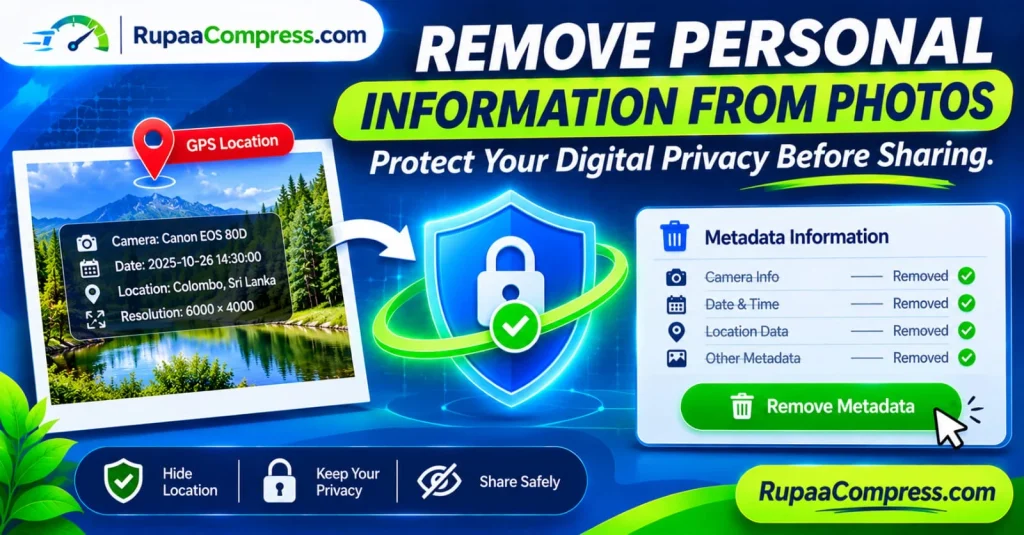
This hidden information is commonly known as EXIF metadata. It can include the camera model, date and time, image dimensions, exposure settings and, when location services are enabled, GPS coordinates.
Although metadata is useful for organising photographs and understanding camera settings, it can also reveal information that you may not want to share publicly.
For example, a photograph taken at home could contain location coordinates. A picture captured during a holiday might reveal when you were away. Even a business photograph could disclose information about the equipment or devices used to capture it.
The good news is that you can take steps to reduce these risks before sharing your images.
In this guide, you will learn what personal information may be stored inside photographs, why removing unnecessary metadata matters, and how to prepare images before publishing them online.
You can also explore image utilities at RupaCompress to help prepare images for sharing.
What Is Hidden Inside Your Digital Photos?
To most people, a digital photograph is simply a visual record of a person, place, product or event. However, the image file may contain additional information that cannot be seen when viewing the photograph normally.
This information is called metadata. One of the most common metadata formats used in digital photography is EXIF (Exchangeable Image File Format).
EXIF data is automatically recorded by many digital cameras and smartphones. The exact information depends on the device, application, file format and camera settings.
Here are some common types of information that may be stored inside an image.
1. Camera and Device Information
Photographs may contain details about the device used to capture them, such as:
- Camera manufacturer and model
- Smartphone model
- Lens information
- Camera software or firmware details
- Exposure time and aperture
- ISO sensitivity
- Focal length
For example, an original photograph might contain information identifying a Canon EOS camera or a particular smartphone model.
This information is generally useful for photographers, but you may not want to expose unnecessary device details when publishing images publicly.
2. GPS Location Coordinates
Some smartphones and digital cameras can record geographical information when location tagging is enabled.
Depending on the device and settings, this information may include:
- GPS latitude
- GPS longitude
- Altitude
- Direction or movement-related information
These coordinates can sometimes identify the location where a photograph was captured.
For instance, a photograph taken at your home, workplace or a private event could reveal its approximate or precise location if GPS information is embedded in the original file.
However, remember that not every photograph contains GPS metadata. Location information is usually recorded only when the device, camera application and relevant permissions support and enable it.
3. Date and Time Information
EXIF metadata may also include the date and time when a photograph was originally captured.
This information can help photographers organise their collections chronologically. However, it may also reveal personal routines when combined with other publicly available information.
For example, a collection of photographs could show when someone regularly visits a particular location or when they are away from home.
Be aware that timestamps can be missing, modified or affected by device clock settings. They should not always be treated as independently verified evidence of when a photograph was taken.
4. Image Dimensions and Technical Details
Image files may contain technical information such as:
- Image width and height
- Orientation
- Colour space
- Resolution-related information
- Compression and encoding details
These details are not necessarily private, but they can be useful when managing, editing and publishing digital images.
Why Should You Remove Personal Information from Photos?
Sharing photographs online is convenient, but the information contained in the original files deserves attention.
Removing unnecessary metadata can reduce the amount of information you disclose when distributing photographs.
1. Reduce the Risk of Exposing Your Location
One of the most important reasons to review photo metadata is GPS privacy.
Imagine taking a photograph outside your home and uploading the original image to a public website. If the file contains GPS coordinates and the website preserves that metadata, someone with access to the original file may be able to inspect the location information.
This can create unnecessary privacy risks, particularly when sharing photographs of children, family members or private locations.
Removing GPS metadata before publishing images can help reduce this exposure.
2. Protect Your Family’s Privacy
Family photographs often include children, homes, schools, celebrations and everyday activities.
Although the photograph itself may not reveal an exact address, embedded location information could provide additional clues.
Before sharing family photographs publicly, consider reviewing the image’s metadata and checking the privacy settings of the platform where you intend to publish it.
3. Protect Business and Workplace Information
Businesses frequently publish photographs of offices, products, employees, equipment and events.
Original image files may contain technical or location information that is unnecessary for public distribution.
For example, photographs taken during a workplace event might include location tags or device details.
Removing unnecessary metadata can help organisations reduce accidental information disclosure when preparing images for websites, marketing campaigns and public documents.
4. Reduce Unnecessary Digital Information
Every image shared online contributes to your digital footprint.
Although metadata alone does not automatically reveal someone’s identity or daily routine, combining it with other information can sometimes make it easier to understand the context surrounding a photograph.
Removing unnecessary metadata is a simple privacy-conscious habit that helps limit the information attached to files you distribute.
Do Social Media Platforms Remove EXIF Metadata?
Many popular social media platforms process uploaded photographs. Depending on the platform and upload method, they may resize, recompress or remove some metadata from publicly distributed versions.
However, you should not assume that every platform removes every type of metadata in every situation.
The result may depend on:
- The social media platform
- Whether you upload through a mobile application or website
- The image format
- The upload and download method
- Whether the platform provides access to the original file
Some messaging applications may also compress photographs when they are sent as regular images, while sending them as documents or original files may preserve more of the original file information.
Best practice: Review and clean the original image before sharing it, rather than relying entirely on a social media platform to protect your metadata.
Is It Safe to Upload Personal Photos to Online Editing Tools?
When looking for a tool to remove EXIF metadata, you may find websites that require you to upload your photographs before processing them.
This does not automatically mean that the service is unsafe. However, it is important to understand how the tool handles your files.
Before using an online image editor, check:
- Whether images are uploaded to a remote server
- Whether files are stored temporarily or permanently
- Whether uploaded images are shared with third parties
- Whether the service explains its privacy policy
- Whether files are automatically deleted after processing
- Whether the tool offers local, browser-based processing
For sensitive photographs, a tool that genuinely processes images locally in your browser can reduce the need to transmit the original file to a remote server.
However, the words “online tool” or “browser-based tool” alone do not prove that processing happens locally. Always check how the particular service works.
Local Browser-Based Image Processing: What You Should Know
Modern browsers support technologies such as JavaScript, the File API and HTML Canvas. Developers can use these technologies to process supported images directly inside a user’s browser.
A properly implemented local image-processing workflow can allow users to select a photograph, process it and download the resulting file without uploading the original image to a remote processing server.
This approach can offer several advantages:
Reduced file transmission: If processing genuinely takes place locally, the original photograph does not need to be sent to a remote server for that operation.
More control over files: Users can select files from their own devices and download the processed versions.
Convenient access: Browser-based tools can be used without installing traditional desktop editing software.
Potentially faster processing: Small image operations can be completed without waiting for an upload and remote processing queue. Actual speed depends on file size, device performance and implementation.
It is important to distinguish local processing from cloud processing. A website may use a browser interface while still sending selected files to a server.
For this reason, review the tool’s privacy information and technical behaviour before using it with confidential photographs.
Step-by-Step Guide: How to Remove Personal Information from Photos
You can prepare your photographs for safer sharing by following this practical workflow.
Step 1: Keep an Original Copy
Before changing any photograph, create a backup of the original file.
This is important because metadata removal may also remove useful technical information. Keeping the original allows you to recover the unmodified photograph if needed.
Create a separate folder for the images you intend to prepare for sharing.
Step 2: Choose a Suitable Metadata Removal Tool
Select a tool that clearly explains which metadata it removes and how it processes uploaded files.
You can start by exploring the image utilities available at RupaCompress.
If you use a metadata removal feature, check its current functionality and privacy information before selecting confidential images.
Step 3: Select the Photograph
Choose the image you want to clean from your computer or mobile device.
Common supported image formats may include JPEG and PNG, although the available formats depend on the tool.
If you are working with several photographs, check whether the tool supports batch processing.
Step 4: Remove Unnecessary Metadata
Use the metadata removal function to create a clean copy of the photograph.
Depending on the tool’s capabilities, this may remove information such as:
- Camera manufacturer and model
- GPS coordinates
- Capture date and time
- Lens and exposure information
- Other supported EXIF fields
Do not assume that every tool removes every metadata standard. EXIF, IPTC and XMP are separate metadata systems, and the removal options may differ.
Step 5: Compress or Resize the Image if Necessary
Once metadata has been removed, you may want to optimise the photograph for its intended purpose.
For example:
- Reduce large file sizes before email sharing.
- Resize photographs for websites.
- Crop images for social media posts.
- Convert supported images into a more suitable format.
You can explore RupaCompress for available image compression and editing utilities.
Remember that compression and metadata removal are different operations. Compressing an image does not necessarily remove all personal metadata.
Step 6: Download and Check the Processed Image
Download the processed image and save it in a separate folder.
If the photograph is particularly sensitive, inspect the resulting file using a trusted metadata viewer or image properties tool.
Check whether the GPS coordinates, camera details and timestamps you wanted to remove are actually absent.
You should also open the downloaded image to confirm that its appearance and orientation are correct.
Step 7: Share the Cleaned Photograph
After checking the processed file, you can use it for your intended purpose.
You might publish it on a website, attach it to an email, include it in a presentation or share it through a messaging application.
Remember that removing metadata does not hide everything visible in a photograph. Street signs, house numbers, school uniforms, business logos and recognisable landmarks can still reveal information.
How to Check Whether a Photo Contains Personal Information
Before removing metadata, you may want to understand what information is already stored inside the image.
Here are a few practical ways to check.
On Windows
- Locate the photograph in File Explorer.
- Right-click the image.
- Select Properties.
- Open the Details tab.
- Review the available camera, date, dimensions and location-related fields.
Windows may display only some of the metadata contained in the file.
On macOS
- Open the photograph in Preview.
- Select Tools.
- Choose Show Inspector.
- Review the information tabs for available image details.
The exact fields depend on the file and the software version.
On Smartphones
Many gallery applications display information such as the capture date, device model and location.
Open the photograph and look for an information or details option. If location tagging was enabled, the gallery application may display a map or location details.
The available options differ between Android devices, iPhones and gallery applications.
Important Things to Remember Before Removing EXIF Metadata
Metadata removal is useful, but it is important to understand its limitations.
Metadata removal does not edit visible image content. If your photograph contains a house number, document, vehicle registration plate or personal information in the background, that information may still be visible.
Not all metadata is personal information. Some metadata is useful for photographers, designers and businesses. Removing everything may affect workflows that depend on camera settings, colour profiles or copyright details.
Metadata can exist in different formats. Removing EXIF information does not necessarily remove IPTC, XMP or other embedded information.
Some platforms create new image files. A website may strip metadata during upload, but this behaviour is not universal.
Check the final file. If privacy is important, verify the metadata of the downloaded image rather than assuming the process worked.
Pro Tips for Maintaining Better Photo Privacy
Developing a few simple habits can help you manage your digital photographs more carefully.
- Review location settings: Check whether your smartphone camera automatically records GPS coordinates.
- Clean photographs before public sharing: Review original image files before uploading them to websites or public platforms.
- Keep original copies: Store unmodified photographs separately from cleaned versions.
- Check image backgrounds: Look for visible addresses, documents, screens and other identifying details.
- Use trusted tools: Review privacy policies and processing methods before using online editing services.
- Verify the output: Inspect sensitive files after processing to confirm that the intended metadata has been removed.
- Be careful with original files: Sending an image as an original document may preserve information that would otherwise be removed during image compression.
These habits are especially useful for photographers, content creators, online sellers, business owners and anyone who regularly publishes photographs.
Frequently Asked Questions (FAQs)
What is EXIF metadata in a photograph?
EXIF metadata is technical information stored inside many digital image files. It can include camera details, capture date, exposure settings, image dimensions and GPS location information when location tagging is enabled.
How do I remove personal information from photos?
You can use a suitable metadata removal tool to create a new image file without selected metadata. After processing, inspect the downloaded file to confirm that the information you wanted to remove is no longer present.
Do all photos contain GPS location data?
No. A photograph contains GPS information only when the capturing device or application records it. Location tagging may be disabled, unavailable or removed during editing and sharing.
Does removing EXIF metadata reduce image quality?
Metadata removal itself does not necessarily reduce visual quality. However, some tools remove metadata by decoding and re-encoding the image. Re-encoding can change image quality, file size, colour information or other properties depending on the settings and format.
Does image compression remove EXIF metadata?
Not always. Some compression tools preserve metadata, while others remove selected fields or create a new file without the original metadata. Compression and metadata removal should be treated as separate functions.
Can someone find my home address from a photograph?
A photograph containing precise GPS coordinates may reveal where it was taken. If that location is your home, it could expose your address or approximate location. However, not every photograph contains GPS information, and visible details in the image may also reveal a location.
Is it safe to use browser-based metadata removal tools?
It depends on how the specific tool works. Some tools process images locally inside the browser, while others upload files to remote servers. Review the service’s privacy policy and processing method before using it for confidential photographs.
Does removing EXIF data make a photograph completely anonymous?
No. Metadata removal can reduce information attached to the image file, but it cannot guarantee anonymity. Faces, landmarks, documents, clothing, backgrounds and other visible details may still identify people or locations.
Should I remove metadata from every photograph?
Not necessarily. Metadata can be useful for organising photographs, maintaining copyright information and professional photography workflows. Consider removing unnecessary personal information from photographs intended for public distribution.
Conclusion: Make Photo Privacy Part of Your Sharing Routine
Photographs can contain more information than what appears on your screen. Depending on the device and settings, the original file may include GPS coordinates, camera details, timestamps and other technical information.
Although this data is useful in many situations, it is not always necessary when sharing photographs publicly.
By checking your image metadata, removing unnecessary personal details, reviewing visible content and verifying the final file, you can reduce the amount of information you unintentionally share.
Before publishing your next photograph, take a moment to review its privacy settings and metadata.
Explore the available image utilities at RupaCompress to prepare your photographs through compression, resizing and other supported image-processing features. You can also visit the RupaCompress Blog for more practical guides about image optimisation and digital image management.