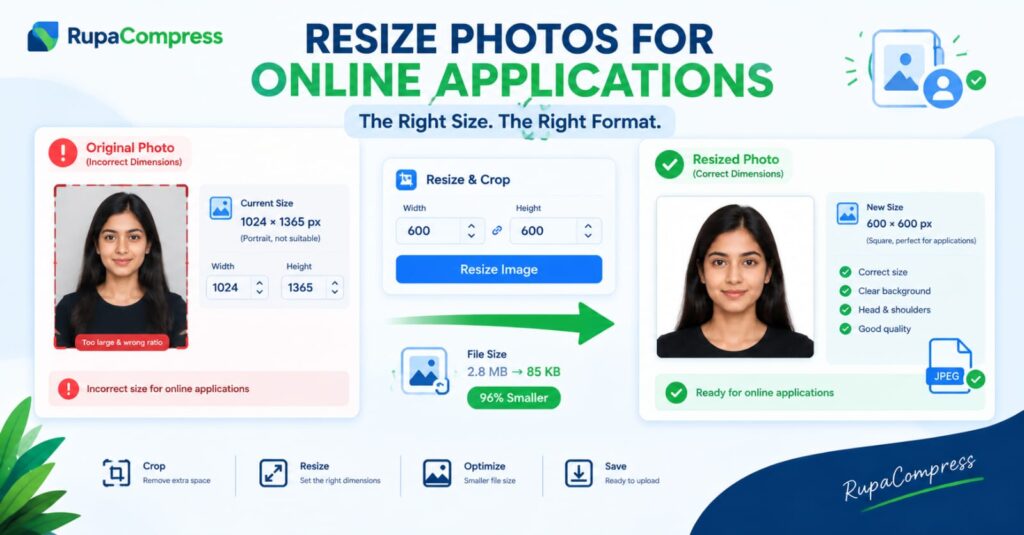
Submitting an online application should be a straightforward process, but something as simple as uploading a photograph can sometimes cause unexpected problems. Whether you are applying for a government job, university admission, a professional qualification, a passport, or a visa, many online portals require your photo to meet specific technical requirements. You might spend a long time completing an application form, only to discover that the website rejects your photograph because the dimensions are incorrect, the file is too large, or the format is not supported. For example, a portrait taken with a modern smartphone might measure 1024 × 1365 pixels and occupy 2.8 MB of storage. Although the photograph looks perfectly clear, it may not meet a portal’s requirement for a square image measuring 600 × 600 pixels with a maximum file size of 100 KB. These limits are not the same for every application, so always check the official instructions before editing your image. Some portals specify exact pixel dimensions, while others focus on the photograph’s aspect ratio, file format, file size, background colour, or facial positioning. Understanding these requirements before you begin can save time, prevent repeated upload errors, and help you complete the submission process with greater confidence. The good news is that you usually do not need expensive editing software or advanced photography skills to prepare a suitable image. With a browser-based tool such as RupaaCompress, you can crop, resize, and compress your photograph to match the specifications provided by the application portal.
Why Do Online Application Websites Reject Photos?
Online application systems use technical requirements to make photographs easier to store, display, review, and process. Government departments, universities, recruitment companies, and other organisations may receive thousands of applications, so standardised image requirements help them manage files more efficiently. One common reason for rejection is incorrect dimensions. If a website requests a square photograph but you upload a tall portrait, the image may not fit the required frame correctly. Automatic cropping might cut off part of your head, chin, or shoulders, producing a photograph that does not meet the portal’s guidelines. File size is another frequent problem. High-resolution smartphone photographs often contain more image data than an application needs, resulting in files that exceed upload limits such as 100 KB, 200 KB, or 500 KB. The image format can also matter: a portal that accepts JPEG or JPG files may reject an unsupported format even when the photograph itself looks correct. Before changing anything, check the instructions for the exact width, height, permitted file formats, maximum file size, background, and facial position. It is also important to understand that resizing and compressing are two different processes. Resizing changes the pixel dimensions of your photograph, while compression reduces the amount of data needed to store the image. Cropping removes unwanted areas around the subject, helping you achieve the correct composition. Depending on the portal’s requirements, you may need to perform all three operations. For the best result, start with a clear original photograph, maintain the correct proportions, and avoid excessive compression that makes facial details difficult to recognise.
How to Resize and Compress Your Application Photo Using RupaaCompress
Preparing a photograph is easier when you follow a few simple steps. First, select a clear original image with even lighting and a plain background if the application requires one. Stand facing the camera, keep your face clearly visible, and avoid strong shadows, distracting backgrounds, beauty filters, or edits that could change your appearance. Keep a backup of your original photograph so you can start again if necessary. Next, open RupaaCompress and choose the appropriate image tool. If your photograph contains too much empty space around your head and shoulders, use the crop tool to remove unnecessary areas and select the aspect ratio specified by the application. Position your face carefully and make sure you do not crop important facial features. Then use the resize tool to enter the required width and height. For example, if the application explicitly requests a 600 × 600 pixel image, enter those dimensions and check that your photograph still looks natural. The next step is compression. If the portal requires a JPEG image under 100 KB, choose JPEG output where supported and adjust the compression settings until the file meets the limit without losing too much visual quality. As an illustration, a 2.8 MB photograph reduced to 85 KB would be approximately 97% smaller, although the actual result depends on the original image, dimensions, and compression settings. After processing, download the edited photograph to your device. Before uploading it, open the downloaded file and check that the face is sharp, the image is correctly positioned, the dimensions are accurate, the format is accepted, and the file size falls within the stated limit. If the portal asks for a different specification, follow that requirement rather than copying the example dimensions used in this guide.
Photo Privacy, Common Mistakes, and Final Tips
Your application photograph deserves the same care as the other personal information you submit online. A portrait can reveal identifying facial details, and some image files may also contain metadata such as the time a photograph was taken or the device used to capture it. For this reason, think carefully before uploading personal photographs or identity documents to unfamiliar websites. A browser-based image tool that genuinely processes files locally can help reduce this risk because the selected image does not need to be sent to a remote server for editing. RupaaCompress provides browser-based image utilities intended to make image preparation simple, but you should always check the tool’s actual processing behaviour and privacy information before using any service for sensitive documents. You should also avoid several common mistakes: do not assume that every application accepts the same dimensions, do not change your facial appearance with heavy filters, do not compress a photograph so aggressively that it becomes blurry, and do not rely on the preview alone without checking the downloaded file. Renaming the final image to something simple, such as applicant-profile-photo.jpg, may also help you keep your files organised, although a particular filename is rarely a substitute for meeting the portal’s technical rules. Remember that a photograph meeting the correct file size and dimensions may still be rejected if it violates official requirements for the background, expression, lighting, or photo age. Always review the relevant instructions before submission. By combining the correct source photograph with careful cropping, accurate resizing, and controlled compression, you can prepare an application-ready image without unnecessary frustration. With RupaaCompress, these everyday image-editing tasks can be handled conveniently in your browser, helping you prepare photographs for online applications while keeping the process straightforward and accessible.