When website owners discuss search engine optimization, the conversation almost always revolves around blue links on the main Google Search results page. However, ignoring Google Images means leaving a massive wave of untapped organic traffic on the table.
For many industries—such as e-commerce, interior design, travel, food blogging, photography, and software documentation—Google Images accounts for 20% to 50% of total inbound search traffic. When users look for product inspiration, visual tutorials, or real-world examples, they head straight to image search.
Learning how to rank on Google Images requires more than just uploading nice pictures. Google’s crawler evaluates dozens of technical, contextual, and performance signals to determine which images deserve the top spots.
In this comprehensive guide, we will break down the core image SEO best practices that help search engines discover, index, and rank your visuals, connecting technical optimization with high-visibility rankings.
Why Google Images SEO Matters for Your Website
Ranking in image search results provides unique advantages that traditional text-only SEO cannot match:
- High-Intent Visual Discovery: Users searching on Google Images are often ready to buy, download, or learn. When your product photo or tutorial graphic appears prominently in the image grid, click-through rates can rival traditional text results.
- Google Discover Visibility: Images that rank well and follow technical best practices are frequently featured in Google Discover—the personalized mobile feed that delivers articles directly to millions of Android and iOS users without them even typing a search query.
- Strengthening Overall Site Authority: When Google successfully indexes your image library, it gains deeper contextual understanding of your entire domain, boosting the authority of your surrounding text content.
The 4 Pillars of Image SEO
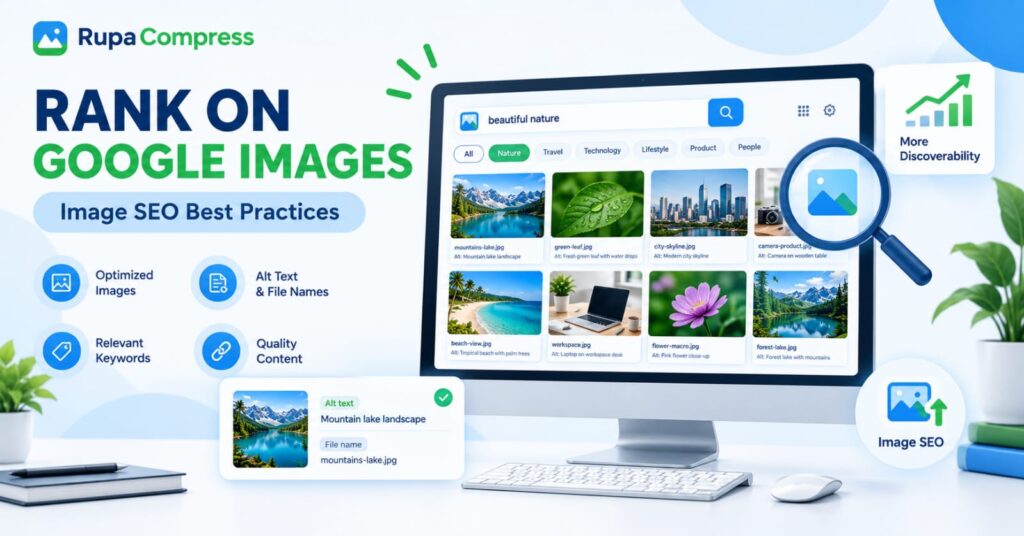
As highlighted in our featured graphic, successfully ranking on Google Images rests upon four interconnected pillars: Optimized Images, Alt Text & File Names, Relevant Keywords, and Quality Content. Let’s explore how to master each one.
Pillar 1: Optimized Images (Performance & Technical Health)
Google hates slow websites because slow websites frustrate users. If your images take five seconds to render, Google’s crawler will spend less time indexing your pages, and real visitors will bounce. Technical image optimization is your foundation:
- Shrink File Sizes Without Losing Quality: Never upload raw multi-megabyte camera files. Use the Compress Image tool on RupaaCompress to reduce your file weight into a lean kilobyte range (for instance, taking a heavy 2.4 MB photo down to 280 KB) so your pages load instantly.
- Use Next-Gen Formats: Serve images in modern formats like WebP or AVIF, which provide superior compression compared to legacy PNGs and standard JPGs. You can instantly batch-convert your media using the Convert Image tool on RupaaCompress. For a deeper format comparison, read our guide on the best image format for websites in 2026 and what WebP is and why you should use it.
- Resize to Display Dimensions: Do not upload a 4000px image if your container only displays 800px. Use the Resize Image tool on RupaaCompress to match your layout, or use our Crop to Square guide for uniform product grids.
- Remove Hidden EXIF Bloat: Strip unnecessary camera metadata and GPS coordinates locally in your browser by following our tutorial on how to remove EXIF data from photos.
Pillar 2: Alt Text and Descriptive File Names
Text signals are the primary bridge Google uses to understand what pixels represent. If your image has a vague filename and a blank alt attribute, search crawlers are essentially guessing blindly.
- Descriptive File Names: Before uploading an image, rename the file using lowercase letters and hyphens to separate words. For example, instead of uploading
IMG_9921.JPG, name your filemountains-lake.jpg(as shown in our featured workspace) oronline-image-compression-tool.webp. - Clear Alt Text: The
altattribute should accurately describe the visual content and context of the image for screen reader users and search bots. As demonstrated in our interface example, a photo of a scenic alpine view should feature alt text like “Mountain lake landscape” or “A person using an online image compressor”. Never stuff unrelated keywords into your alt text; keep it natural, helpful, and under 125 characters.
Pillar 3: Relevant Keywords and Contextual Surrounding Text
Google does not rank an image in a vacuum; it evaluates the entire surrounding context of the webpage.
- Topical Relevance: If you publish an article about coffee brewing methods, an image of an espresso machine placed inside that article will inherit strong topical relevance. Ensure your headings (
H1,H2,H3), introductory paragraphs, and captions naturally incorporate your target keywords. - Image Placement: Place your most important hero image near the top of the page where it is immediately visible to both readers and search crawlers.
- Captions: Visible captions (
<figcaption>) are read by over 300% more people than body paragraphs. Use captions to add useful commentary, which reinforces the image’s context for search engines.
Pillar 4: Quality Content and User Experience
Google’s image ranking algorithms heavily favor images hosted on high-authority, trustworthy, and fast-loading pages.
- Originality: Whenever possible, use original photographs, custom screenshots, bespoke infographics, or unique product shots rather than generic stock photos that appear on ten thousand other websites. Google’s algorithms are increasingly adept at identifying and rewarding unique visual assets.
- Mobile-Friendly Design: Ensure your images scale responsively across mobile phones, tablets, and desktop displays without breaking your layout or causing Cumulative Layout Shift (CLS).
Step-by-Step Checklist: How to Prepare and Publish Images for Maximum SEO
Ready to put these best practices into action? Follow this 5-step workflow every time you prepare visuals for a new blog post or product page:
- Select or Create High-Quality Visuals: Choose original, sharp photographs or custom graphics that directly illustrate your article’s core points.
- Rename the File: Change the default camera or stock filename to a clean, hyphenated keyword phrase (e.g.,
mountains-lake.jpg). - Resize and Convert locally: Open RupaaCompress, scale the image dimensions to fit your layout, convert it to WebP or optimized JPG, and compress the file weight (aiming between 60 KB and 200 KB for standard blog images). Because RupaaCompress runs 100% locally in your browser, your files remain completely private and process instantly.
- Upload and Add Alt Text: Upload the optimized image into WordPress or your CMS, and enter a natural, descriptive Alt Text sentence (e.g., “Mountain lake landscape”).
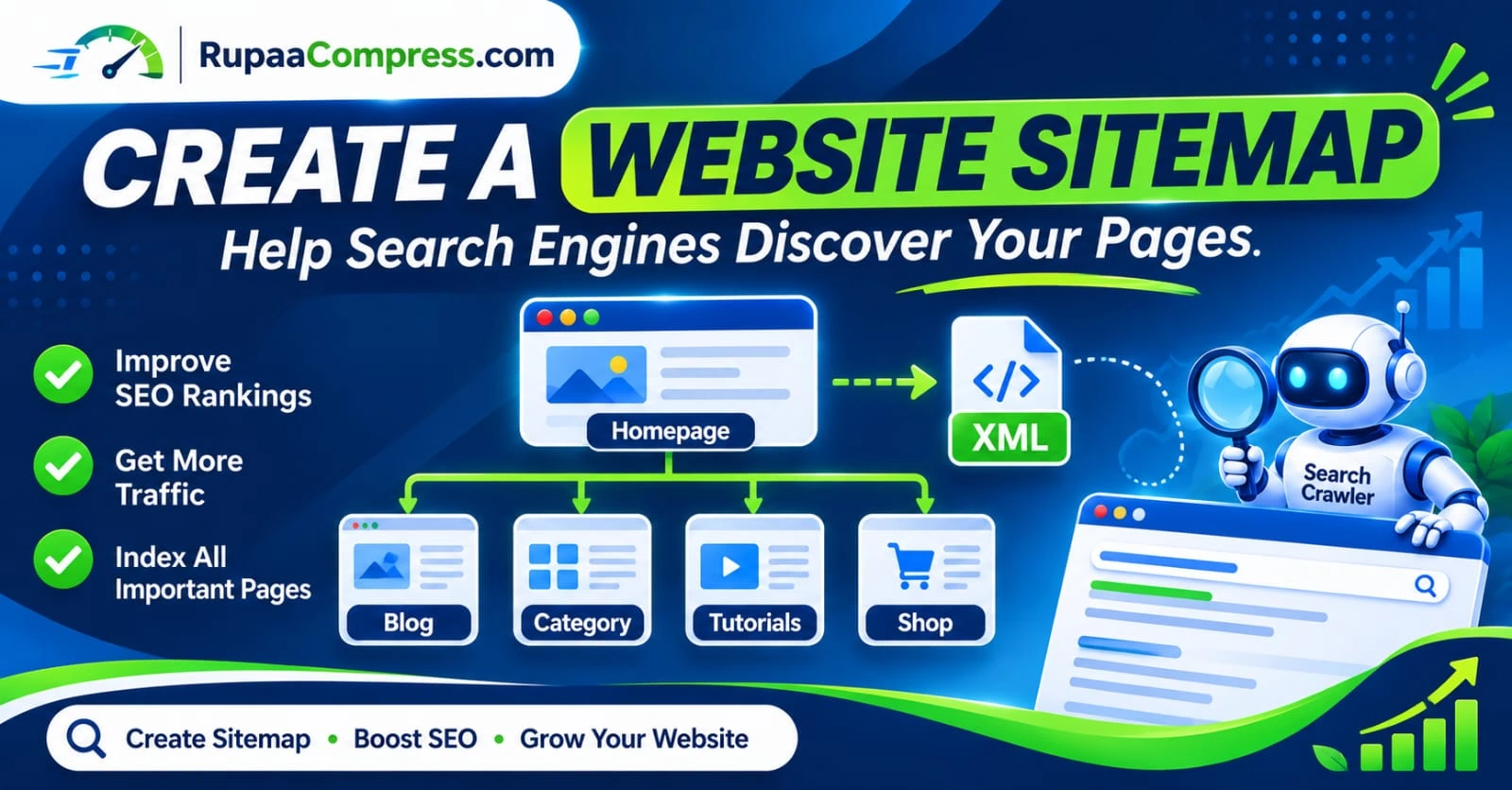
- Publish and Verify: Publish your page, ensure the image appears clearly across mobile and desktop views, and check that your sitemap includes your image URLs so Google can discover them rapidly.
Frequently Asked Questions (FAQs)
1. How long does it take for images to rank on Google Images?
It depends on your website’s overall authority and crawl frequency. For established sites, Google can index and rank new images within a few days. For newer blogs, it may take a few weeks as Googlebot crawls and re-evaluates your sitemaps.
2. Can I use stock photos and still rank in Google Images?
Yes, but it is much harder. Google prefers original, unique images. If thousands of other sites use the exact same stock photo, Google may filter duplicate visuals out of search results in favor of original photography or custom diagrams.
3. Should I add a sitemap specifically for images?
Yes! If your website relies heavily on visual content (like an e-commerce store or photography portfolio), creating a dedicated image XML sitemap or ensuring your primary Rank Math / Yoast SEO sitemap includes image tags will help Google discover and index your media much faster.
4. What is the best file format for Google Images?
WebP and JPG are the absolute best formats for photographic images. They offer incredible compression ratios and are universally supported by all modern web browsers and Google’s image indexing crawlers.
5. Why are my images not showing up in Google Image search?
Common reasons include:
- Blocking Googlebot in your
robots.txtfile. - Using
noindextags on image attachment pages. - Missing or unhelpful alt text and filenames.
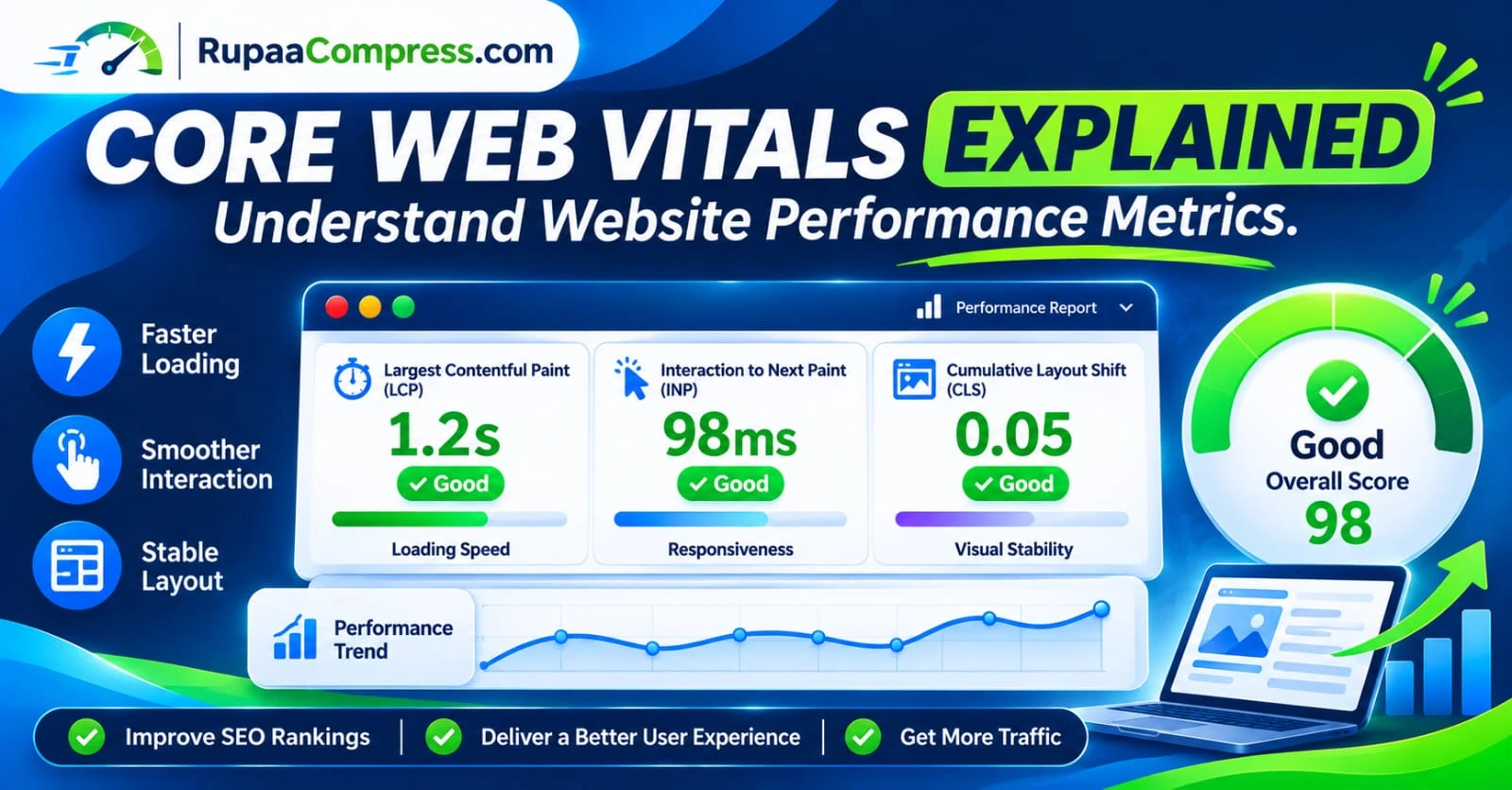
- Extremely slow page load times (failing LCP).
- The image being hidden behind login screens or lazy-loading improperly.