Images play an important role in almost every part of the digital world, from websites and online shops to social media posts, digital marketing materials, photography portfolios, and personal projects. However, choosing the right image format is just as important as choosing the right photograph. The format you use can affect the image’s file size, visual quality, transparency, loading speed, and compatibility with different applications. JPG and PNG are two of the most widely used image formats, and although they may look similar when viewed on a screen, they work differently and are designed to serve different purposes. Understanding these differences can help you make better decisions when preparing images for websites, sharing photographs online, creating graphics, or storing important visual content. The good news is that you do not need advanced graphic design skills to choose the right format. By understanding how JPG and PNG handle image data, you can select the option that offers the best balance between quality, file size, and functionality for your particular needs.
What Is JPG or JPEG?
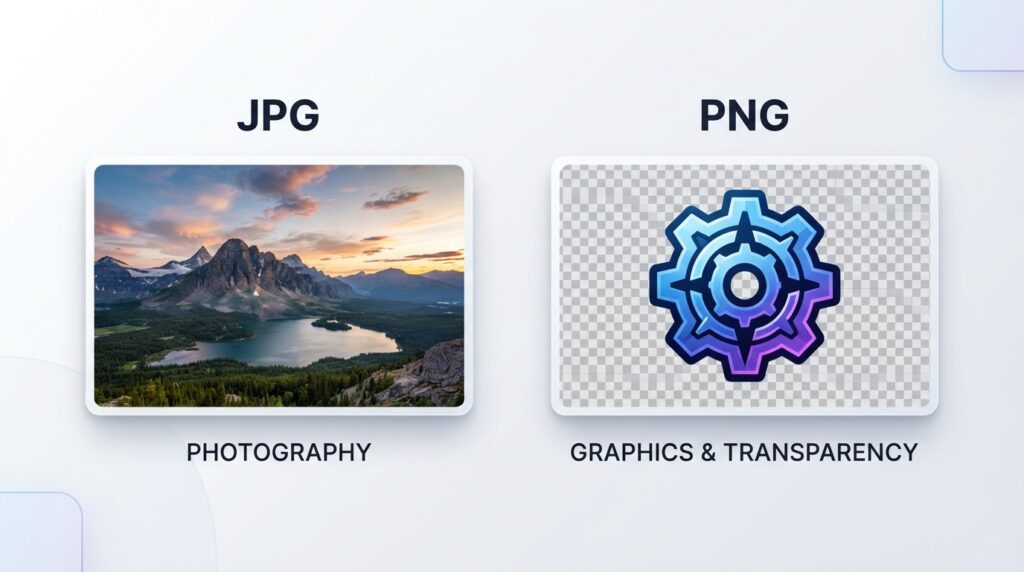
JPG, also known as JPEG, is an image format commonly used for digital photographs. The names JPG and JPEG refer to the same format, so you can generally treat them as interchangeable when working with images. JPG became popular because it can reduce the size of photographic images significantly while maintaining an acceptable level of visual quality. This makes it particularly useful for photographs captured by smartphones, digital cameras, and other devices. A photograph can contain millions of colour variations, detailed textures, shadows, lighting differences, and complex backgrounds. Saving such an image as a JPG allows the file to use lossy compression, which reduces the amount of image information stored in order to create a smaller file. The reduction in size can make photographs quicker to upload, download, share through messaging applications, and display on websites. For everyday photography, the difference between a high-quality JPG and the original image may be difficult to notice during normal viewing, although the amount of visible detail lost depends on the compression settings and the content of the image.
One of the main advantages of JPG is its practical balance between image quality and file size. Imagine that you run an online store containing hundreds of product photographs. Uploading each product image as a very large, uncompressed file could increase the amount of storage required and make the product pages slower to load. Saving appropriately optimized photographs as JPG files may reduce those file sizes while still presenting products clearly to customers. The same principle applies to travel photographs, personal albums, blog images, restaurant menus containing photographs, and promotional pictures for social media. JPG is also widely supported by browsers, computers, smartphones, and image-editing applications, making it a reliable choice when you need images that can be opened across different devices. However, JPG does have limitations. It does not support transparent backgrounds, and repeated editing and saving at lossy quality settings can gradually introduce compression artefacts. For this reason, it is better to retain a high-quality original or master file and create optimized JPG copies for everyday use rather than continually re-saving the same compressed image.
What Is PNG?
PNG stands for Portable Network Graphics. Unlike JPG, PNG uses lossless compression, which means that the image information can be reconstructed without the data loss associated with lossy compression. This makes PNG particularly useful when preserving sharp edges, fine details, text, and precise colour boundaries is important. PNG also supports transparency, allowing portions of an image to remain transparent rather than displaying a solid background. These features make it a practical choice for logos, icons, interface elements, diagrams, screenshots, illustrations, and graphics that need to appear over different backgrounds. Consider a company logo designed to appear on a website with a coloured background. If the logo has a transparent background, it can sit naturally over the website’s design without an unwanted white or solid-coloured rectangle surrounding it. A PNG file can preserve that transparency, allowing the graphic to be used in presentations, promotional materials, website layouts, and other creative projects.
PNG is also useful for screenshots containing small text, software interfaces, technical diagrams, and illustrations with thin lines. These types of images can be sensitive to the compression artefacts associated with JPG, because even minor distortions around letters or sharp edges can make the result look blurry or less professional. Saving them as PNG can preserve the clean appearance of those details. However, PNG is not automatically the better choice for every image. Photographs contain complex colour and texture information, and PNG files of high-resolution photographs can be considerably larger than comparable JPG files. A large collection of PNG photographs may therefore require more storage and take longer to transfer or load over a slow internet connection. The important distinction is that PNG prioritizes lossless image representation and transparency, whereas JPG is especially useful when reducing photographic file sizes is a priority. The official MDN guide to image file formats explains these general differences and provides further information about other web-friendly formats.
Image Quality: Is JPG Better Than PNG?
Image quality is often the first consideration when choosing between JPG and PNG, but the answer depends on the purpose of the image and the settings used to create it. PNG preserves image information during compression, while JPG discards some information to make the file smaller. As a result, PNG is generally preferable when precise reproduction is essential, especially for text-based graphics, line drawings, screenshots, and images that require transparency. JPG, on the other hand, can produce excellent-looking photographs at substantially smaller file sizes when an appropriate quality setting is used. For example, a landscape photograph saved as a high-quality JPG may look very similar to a much larger PNG version when viewed on a typical computer or mobile phone screen. If the objective is to publish that photograph on a blog, sharing platform, or product page, the smaller JPG may offer a better practical result.
It is important to understand that converting a JPG into PNG does not restore image details that were already removed by JPG compression. A PNG conversion may prevent additional lossy compression in later processing, but it cannot recover information that is no longer present in the source file. Similarly, simply converting a PNG into JPG does not guarantee a better-looking or more useful image. The conversion may reduce the file size, but it can also remove transparency and introduce compression artefacts depending on the output settings. If you are editing an important photograph, it is sensible to retain the original source file and use converted copies for specific purposes. That approach gives you greater flexibility when preparing images for different platforms and helps you avoid unnecessary quality loss during repeated editing.
File Size and Website Loading Speed
File size matters because an image is not only a visual asset but also a file that must be downloaded, stored, transmitted, and processed. Large images can consume more data for visitors, take longer to load, and increase the total weight of a web page. This is particularly relevant for mobile visitors using limited data connections or slower networks. When a website displays many photographs, such as an e-commerce catalogue, photography blog, travel website, or news publication, even modest savings across individual images can make a noticeable difference to the total amount of data transferred. JPG often provides an effective solution for photographic content because its lossy compression reduces file size without necessarily producing a noticeable visual difference at appropriate quality settings.
However, changing every image to JPG is not a good optimization strategy. Transparent logos, diagrams, and screenshots may need PNG to preserve their intended appearance. For website owners, the better approach is to examine each image’s function, choose a suitable format, and then optimize the file size while maintaining acceptable visual quality. You should also consider modern formats such as WebP and AVIF, which can provide efficient compression and support features such as transparency. Their suitability depends on the target platforms, applications, and compatibility requirements, so the best format should be selected according to the real use case rather than assuming that one extension is always superior. Before publishing an image, compare its appearance and file size so that optimization does not become a reason for delivering blurry or visually damaged content.
Can You Convert JPG to PNG or PNG to JPG?
Yes, converting between the two formats can be useful when an image needs to meet the requirements of a particular application or project. Converting JPG to PNG may help when a workflow requires PNG output or when you want to save subsequent edits in a lossless format. However, the converted file will still contain the limitations of the original JPG image, and the conversion will not recover previously discarded details. Converting PNG to JPG is often useful when you have a photograph or graphic that does not require transparency and you want a smaller file for sharing or publishing. Since JPG does not support transparency, transparent areas in a PNG must be replaced with a solid background when exported as JPG. If you are converting a logo or icon, inspect the result carefully to ensure that the background and edges appear as intended. For photographs, you should also review the output quality rather than relying on the file extension alone.
The RupaaCompress Convert Image tool provides a convenient way to convert supported image files directly in your browser. You can select an output format according to your needs and process images individually or in batches. The website also offers an image compression tool for reducing file sizes when your main goal is to prepare images for faster sharing or website use. Choosing the correct format before compression can make the overall workflow more efficient, particularly when working with large groups of images.
How to Choose the Right Image Format for Your Needs
The simplest way to make the decision is to think about the main purpose of your image. If you are working with photographs, travel pictures, portraits, or product photography and you need a practical balance between visual quality and file size, JPG is usually a strong choice. If the image contains a transparent background, small text, precise lines, interface screenshots, or graphical details that should remain crisp, PNG is often more suitable. If you are preparing images for a website, consider whether WebP or AVIF could provide a useful alternative, especially when both file size and visual quality are important. If you are creating graphics for branding, make sure you understand whether transparency is necessary before exporting the final file. If you are sharing an image with another person or uploading it to a particular service, check the format requirements of the destination rather than converting the image unnecessarily.
In the end, JPG and PNG are not competitors in which one format must always win. They are different tools for different situations. JPG is especially useful for photographic images that need efficient compression, while PNG is valuable for graphics that require lossless compression and transparency. Good image management means selecting a format according to the content, preserving important originals, and optimizing exported copies for their intended use. With a little understanding of these differences, you can improve the appearance of your images, reduce unnecessary file sizes, and prepare visual content more efficiently. Explore the free RupaaCompress image conversion tools to prepare images in a format that suits your next website, project, or creative task.