Every digital photograph contains more than what you see on your screen. Whether you capture pictures using an iPhone, Android smartphone, DSLR camera, or mirrorless camera, your image files may contain additional technical information known as image metadata.
This hidden information can include camera specifications, image dimensions, capture dates, editing details, and sometimes GPS location coordinates. Although metadata helps organize photographs and understand how images were captured, it can also reveal information that you might not want to share publicly.
For example, a photograph taken at home could contain location information identifying where the picture was captured. Similarly, professional photographs may reveal camera equipment, capture dates, and other technical details.
Understanding what image metadata is and how to manage it is an important part of protecting your digital privacy.
In this guide, you will learn what EXIF data contains, how photo metadata works, why location information can create privacy concerns, and how to inspect and remove unnecessary metadata before sharing images online using convenient browser-based tools such as RupaaCompress.
1. What Is Image Metadata? Understanding the Hidden Information Inside Photos
Image metadata is additional information stored within or associated with a digital image file. It describes different characteristics of a photograph, including how it was captured, when it was created, and which camera or software was used.
Unlike the visible photograph, metadata is not normally displayed when you open an image in a standard photo viewer.
Digital cameras and smartphones automatically record many of these details during image capture.
One of the most common metadata standards used in digital photography is EXIF, which stands for Exchangeable Image File Format.
What Information Does EXIF Metadata Contain?
EXIF data can include several categories of information depending on the camera, device, image format, and settings.
Camera and Device Information
This information identifies the equipment used to capture a photograph.
Examples include:
- Camera manufacturer and model.
- Smartphone model.
- Lens information.
- Camera software or firmware details.
Photography Settings
Digital cameras record technical settings that describe how a photograph was captured.
Common examples include:
- ISO sensitivity.
- Shutter speed.
- Aperture or F-stop.
- Focal length.
- Flash settings.
- Exposure compensation.
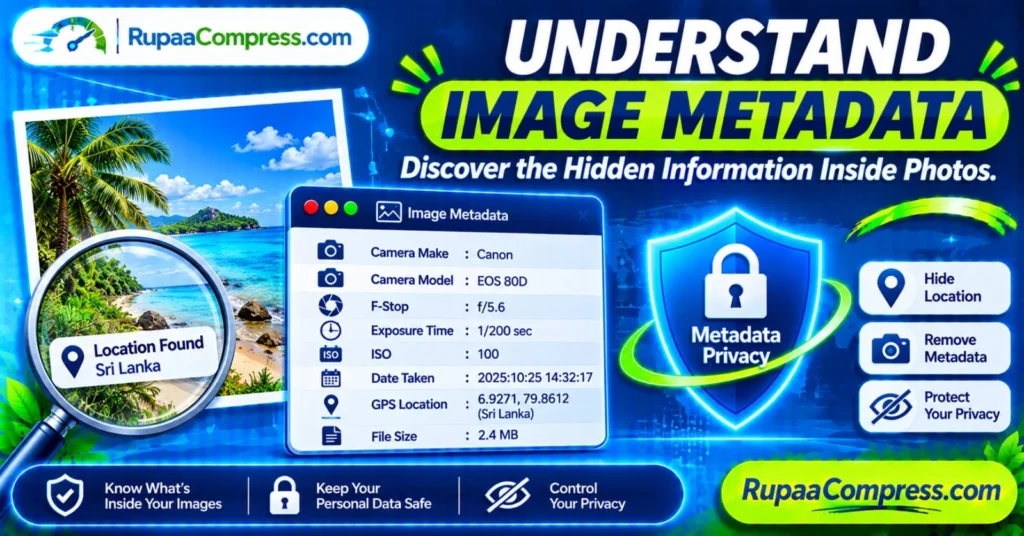
For example, an image might contain the following camera information:
- Camera: Canon EOS 80D.
- Aperture: f/5.6.
- Exposure time: 1/200 second.
- ISO: 100.
Date and Time Information
Image metadata may record when a photograph was originally captured.
Depending on the device, this can include:
- Date the photograph was taken.
- Time of image capture.
- Original creation date.
- Modification date.
- Software editing timestamps.
These details can help photographers organize their collections and identify when particular photographs were created.
GPS Location Information
Some smartphones and cameras can save geographical coordinates inside photographs when location tagging is enabled.
This information may include:
- GPS latitude.
- GPS longitude.
- Altitude.
- Direction of capture.
For example, a photograph taken in Colombo could contain GPS coordinates identifying its capture location.
Not every photograph contains GPS information. Its availability depends on the device, camera settings, and location permissions.
Image and File Information
Other metadata fields describe the technical properties of the image.
These may include:
- Image width and height.
- File format.
- Colour space.
- Resolution information.
- Compression details.
- File-related properties.
Understanding these different metadata categories helps you decide which information should remain in your photographs and which information should be removed before sharing.
2. Why Image Metadata Privacy Matters
Metadata is useful, but sharing photographs without checking their hidden information can sometimes expose more personal information than expected.
This is particularly important when publishing family photographs, property images, professional photography, or commercial product pictures.
Location Tracking and Personal Privacy
GPS information is one of the most important metadata fields to consider.
If a smartphone saves location coordinates when capturing a photograph, those coordinates may reveal where the image was taken.
For example, publicly sharing photographs captured inside your home, at a private workplace, or at a frequently visited location could unintentionally disclose location information.
This does not mean every uploaded photograph reveals your location. Some social media platforms remove or restrict certain metadata during image processing, while others may preserve selected information.
Checking your original image files before sharing is therefore a useful privacy precaution.
Protecting Family and Personal Photographs
Personal photographs often contain more information than people realize.
Images of children, family gatherings, private properties, and holiday destinations may contain embedded dates and location details.
Before distributing personal photographs through public websites, forums, or messaging platforms, consider whether the embedded information is necessary.
Removing unnecessary GPS metadata can help reduce the amount of location information included in the image file.
Business and Commercial Image Protection
Metadata management is also relevant to businesses, photographers, and online retailers.
Professional photographs may contain technical information about cameras, equipment, editing software, and capture dates.
Although these details are not necessarily confidential, businesses should understand what information is included in the files they publish.
Reviewing image metadata before releasing commercial photography can support better digital asset management and privacy practices.
Automated Data Collection
Digital images published online can be downloaded, copied, and analyzed by automated software.
Where metadata remains available, automated systems may extract technical information and other embedded details.
For this reason, checking unnecessary metadata before publishing photographs is a sensible step for individuals and businesses that regularly share images online.
3. How to Inspect and Remove Image Metadata Safely
Before removing metadata, it is useful to understand how to inspect the information contained inside your photographs.
There are several ways to view EXIF data, depending on your device and operating system.
On Windows:
- Locate the photograph on your computer.
- Right-click the image file.
- Select Properties.
- Open the Details tab.
- Review the available camera, date, dimensions, and other metadata fields.
On macOS:
- Open the photograph using Preview.
- Select Tools from the menu.
- Open Show Inspector.
- Explore the available image information and EXIF details.
On Smartphones:
Some gallery applications display camera settings, capture dates, and location information through an image’s information or details menu. The available fields depend on the device and application.
Why Use a Browser-Based EXIF Metadata Remover?
If you regularly work with multiple photographs, using an image metadata viewer or EXIF remover can make the process more convenient.
Browser-based image tools can provide a simple workspace for inspecting and processing photographs without installing additional desktop software.
For privacy-sensitive tasks, consider tools that perform image processing locally within the browser.
RupaaCompress provides browser-based image utilities designed for convenient image editing and optimization.
You can explore its available tools at RupaaCompress.com.
Step-by-Step: How to Remove EXIF Data from Photos
Follow this workflow to prepare photographs before sharing them online.
Step 1: Select Your Original Images
Choose the photographs you want to inspect or clean.
These may include smartphone pictures, DSLR photographs, product images, or personal photographs.
Keep a backup of your original files before making any changes.
Step 2: Inspect the Image Metadata
Use your computer’s image properties or a suitable EXIF metadata viewer to examine the information embedded in your photographs.
Pay particular attention to GPS coordinates, capture dates, camera details, and other information you do not want to distribute.
Step 3: Open an Image Metadata Removal Tool
Visit RupaaCompress and explore its available privacy and image-processing utilities.
Select the relevant metadata removal tool if available and choose the photographs you want to process.
Step 4: Remove Unnecessary Metadata
Use the available removal options to create a cleaned image file.
Depending on the tool and image format, removing metadata may also remove useful information such as camera settings and original capture details.
Check the available options before processing your files.
Step 5: Download and Verify Your Clean Images
Download the processed photographs to your computer.
If privacy is important, inspect the resulting files again using an EXIF viewer to verify which metadata fields have been removed.
You can then use the cleaned photographs for websites, social media, email attachments, and other online activities.
4. Best Practices for Protecting Your Image Privacy
Removing EXIF data is useful, but it should be part of a broader digital privacy strategy.
Here are several practical recommendations for managing your image files more safely.
Remove GPS Data Before Public Sharing
Consider removing unnecessary GPS coordinates before publishing personal photographs on public websites, blogs, or online communities.
This is particularly useful for photographs captured at private homes, schools, workplaces, and other sensitive locations.
Review Metadata Before Uploading Commercial Images
Businesses and photographers should establish a routine for reviewing image metadata before publishing commercial photography.
This helps maintain better control over the information included in their digital assets.
Keep Original Photographs Separately
Metadata can be useful for professional photography workflows.
For example, camera settings and capture timestamps can help photographers organize projects, reproduce shooting conditions, and manage image collections.
Therefore, keep your original photographs safely backed up before removing metadata from copies intended for public distribution.
Understand Social Media Metadata Handling
Different social media platforms process uploaded photographs differently.
Some services remove certain metadata during image processing, but you should not assume that every platform removes all sensitive information.
If you are concerned about location privacy, clean the image before uploading rather than relying entirely on the platform.
Combine Metadata Removal with Image Optimization
After removing unnecessary metadata, you may also want to resize or compress photographs before publishing them online.
Optimized images can reduce file sizes and help improve website loading performance.
However, remember that metadata removal and image compression are different processes. Removing metadata does not automatically guarantee a smaller file size.
You can explore additional browser-based image utilities at RupaaCompress to prepare photographs for online use.
Frequently Asked Questions (FAQs)
1. What is image metadata?
Image metadata is additional information associated with a digital photograph. It can contain camera details, capture dates, image dimensions, GPS coordinates, and editing information. EXIF is one of the most widely used standards for storing photographic metadata.
2. What is EXIF data in a photo?
EXIF stands for Exchangeable Image File Format. It stores information about how a photograph was captured, including camera models, aperture, shutter speed, ISO, timestamps, and sometimes GPS location information.
3. How can I check the hidden information inside my photos?
On Windows, right-click an image, select Properties, and open the Details tab. On macOS, use Preview’s Show Inspector feature. You can also use a suitable EXIF metadata viewer to inspect additional fields.
4. How do I remove GPS location data from photos?
You can use your operating system’s available metadata-removal features or a suitable EXIF removal tool. Select the image, remove the relevant GPS information, save a separate copy, and verify the result before sharing.
5. Does removing EXIF data reduce image quality?
Removing metadata does not inherently reduce the visual quality or resolution of a photograph. However, some tools may re-encode the image during processing. This can affect image quality depending on the export format and compression settings.
6. Do screenshots contain image metadata?
Screenshots can contain metadata such as creation dates, dimensions, and device-related information. However, they generally do not contain the original camera’s complete EXIF information unless additional information has been embedded.
7. Are online EXIF removal tools safe?
Safety depends on how the website handles image files. Tools that perform processing entirely within your browser can reduce exposure because the original files do not need to be uploaded to a remote processing server. Always verify the tool’s actual processing method and privacy policy.
Conclusion: Take Control of Your Digital Image Privacy
Image metadata provides useful technical information, but it can also reveal details that you may not want to share publicly.
Understanding what image metadata contains, checking GPS information, and removing unnecessary EXIF data can help you make more informed decisions about your digital privacy.
Whether you are sharing family photographs, uploading professional photography, or managing commercial product images, reviewing hidden image information is a worthwhile habit.
Protecting your photographs does not need to be complicated. With suitable image metadata tools and responsible file-management practices, you can prepare your images for online sharing while maintaining better control over your personal information.
Ready to inspect and manage your image files?
Visit RupaaCompress.com to explore free browser-based image utilities for metadata management, image compression, resizing, and other practical image-processing tasks.
Understand what is inside your photos. Remove unnecessary information. Take control of your image privacy with RupaaCompress.