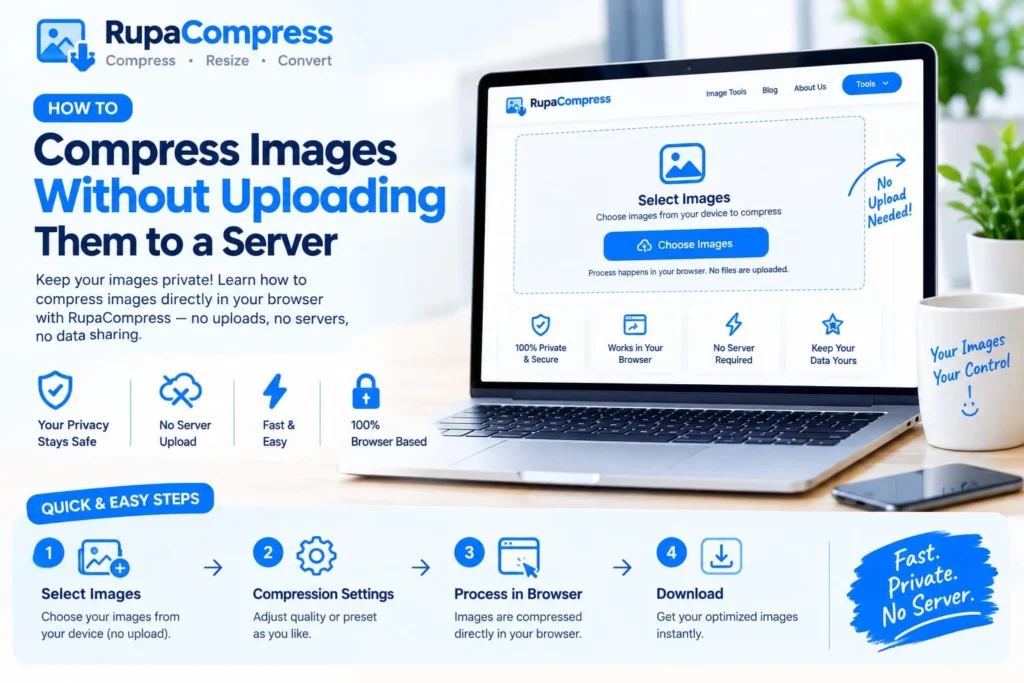
When webmasters, photographers, designers, and everyday internet users need to shrink a heavy photograph or optimize a batch of graphics, the standard habit is to open a search engine, find an online image compressor, drag and drop the files, and wait for them to process. Most people never stop to ask a critical question: Where do my files actually go after I drop them into that website box? The uncomfortable truth is that many traditional online image compression websites require you to upload your confidential files to a remote cloud server. Your private family photographs, unreleased commercial product designs, sensitive client ID scans, and copyrighted portfolio assets may be transmitted across the internet to a third-party system. Once files reach a remote server, how long they remain stored, who can access them, and whether automated systems analyze them depend on the service’s security practices and privacy policy. Fortunately, modern web technology offers a secure, fast alternative. As illustrated in our featured guide above, you can compress images without uploading them to a server by processing everything locally inside your web browser. In this comprehensive guide, we will examine the privacy risks of traditional cloud image compressors, explain how local browser-based processing works, and provide a simple four-step workflow to optimize your photos securely.
The Hidden Privacy Risks of Cloud Image Compressors
When you use a conventional online tool that requires server uploads, several potential privacy and security risks arise.
1. Insecure Public Internet Transmission: To begin compression, your files must travel from your computer to a remote data centre. HTTPS encryption helps protect data during transmission, but the security of the service and its infrastructure also matters.
2. Third-Party Server Storage and Logs: Once received, your files may enter a server-side processing queue. Depending on the platform’s terms and technical practices, copies may be retained in backups, processing logs, caches, or other storage systems. Weak security controls can increase the risk of unauthorized access.
3. Commercial Data Scraping and AI Training: Some online services may collect usage information or metadata to support analytics, advertising, or other commercial activities. The specific practices vary by provider, so users should review privacy policies and data-retention terms before uploading confidential documents, unreleased product prototypes, or private photographs. To reduce these risks, privacy-conscious professionals across the US, UK, Europe, and other regions can consider local browser-based image compressors, including the tools available at RupaaCompress. Modern web technologies such as HTML5, JavaScript, and the HTML5 Canvas API can run image-processing operations inside your browser using your computer’s processor and memory. With genuine client-side processing, zero server uploads are needed for the image operation, your files remain on your device, and processing can happen without remote upload queues. Some tools may also work offline after their pages and required resources have loaded, provided their implementation does not depend on network requests.
Quick & Easy Steps: How to Compress Images Locally in Your Browser
Optimizing your photos without server uploads does not require advanced technical knowledge. Follow these four simple steps.
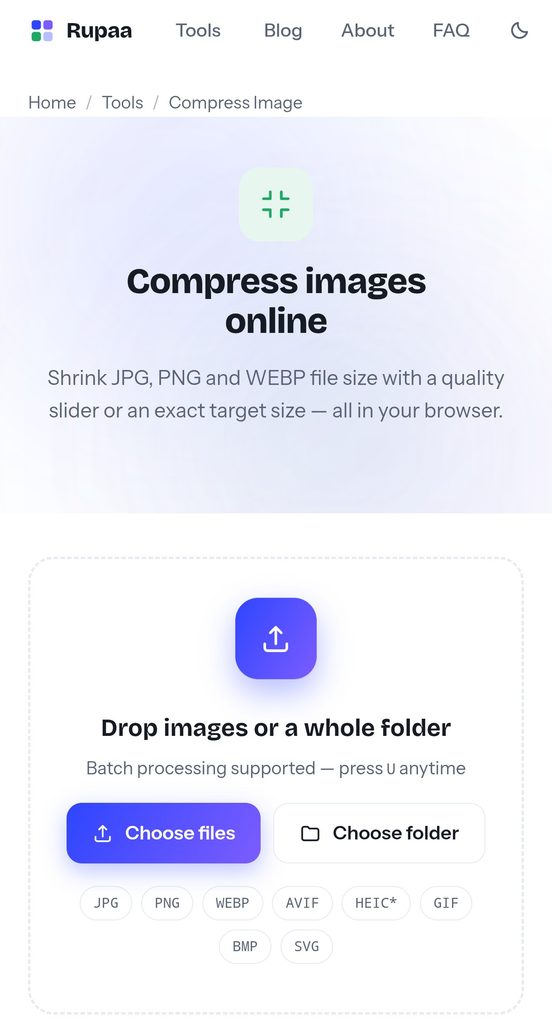
Step 1: Select Images. Choose your images or drag and drop supported files into the workspace of the RupaaCompress online image tools. If the tool supports multiple files or folder selection, you can select a batch from your device. Because genuinely local tools do not need to upload images before processing, selecting files can be immediate, even when working with large photographs.
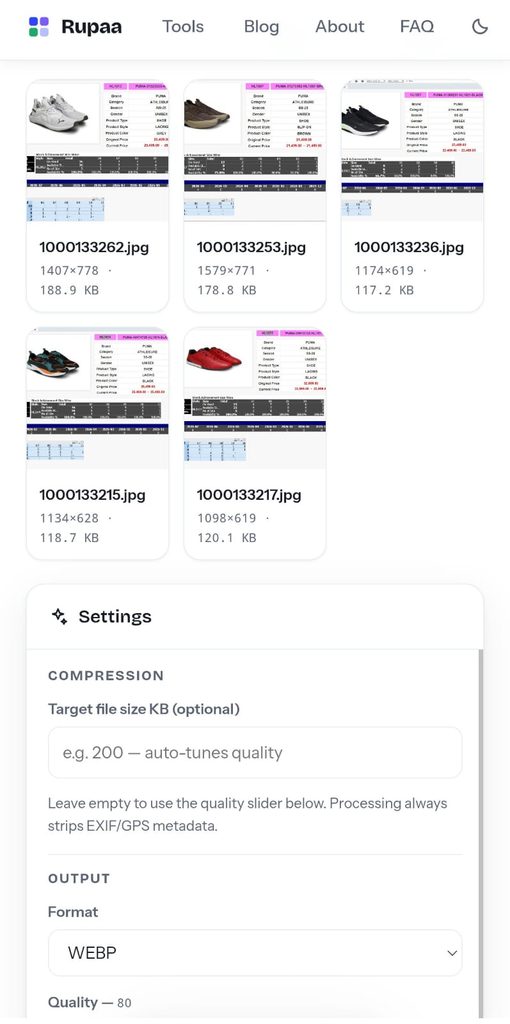
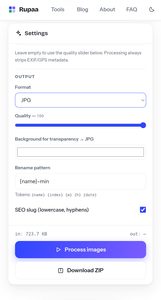
Step 2: Adjust Compression Settings. Fine-tune your output by adjusting the image-quality slider or selecting a suitable preset to match your file-size goals. For additional guidance, read our tutorial on how to compress images to 100 KB or less. Remember that the final file size depends on the original image, its dimensions, the output format, and the compression settings.
Step 3: Process in Browser. Start compression and allow the browser to process the selected images using its available memory and processing power. With client-side processing, there are no remote image-upload queues or cloud-processing delays.
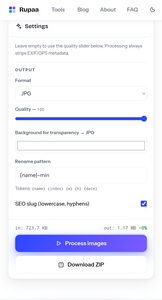
Step 4: Download Instantly. Download your optimized images with a single click, or download the processed batch if that feature is supported. Your smaller files are ready to use on websites, portfolios, and applications. For very large images or batches, available memory and browser limits can affect performance, so process files in smaller groups if necessary.
Why Local Compression Is Better for GDPR and Professional Security
For European freelancers, corporate agencies, photographers, and individuals handling confidential documents, local browser compression can be a useful privacy-protection measure. Under frameworks such as the EU General Data Protection Regulation (GDPR) and Switzerland’s Federal Act on Data Protection (FADP), organizations must consider how personal data is processed and protected. Processing images locally can reduce the need to transfer them to an external image-processing provider, helping reduce certain exposure risks. However, local compression alone does not automatically guarantee GDPR or FADP compliance; the full workflow and any other data collected by the website must also be considered. You can explore our guide to secure local image compressors for client photos and GDPR for more information. Local processing can also complement other privacy practices. For example, you can learn how to remove EXIF metadata from photos to reduce the risk of sharing embedded information such as location coordinates. You can also explore modern image formats such as WebP in our guide to the best image format for websites in 2026. Frequently Asked Questions (FAQs): 1. How can an image compressor work without uploading files to the server? Local compressors use your computer’s processor and browser memory, often through JavaScript and the HTML5 Canvas API, to process images directly on your device without sending the image to a remote server. 2. Can I use local image compressors without an internet connection? Yes, if the tool and all its required resources have already loaded and its processing features do not depend on network requests. Under those conditions, you can disconnect from the internet and continue compressing images locally. 3. Are there any file-size or batch limits when compressing locally? Local tools use your computer’s available RAM and processing power rather than relying on a remote server’s upload limits. However, browser memory, device performance, supported formats, and the tool’s own implementation can still limit the size and number of files you can process. Large batches of high-resolution photographs may work best when divided into smaller groups.