In the world of e-commerce, digital marketing and online content creation, image quality plays an important role in how people perceive a brand. Whether you operate an online store, manage a business website, create social media content or design marketing materials, professional-looking images can help communicate your message more effectively.
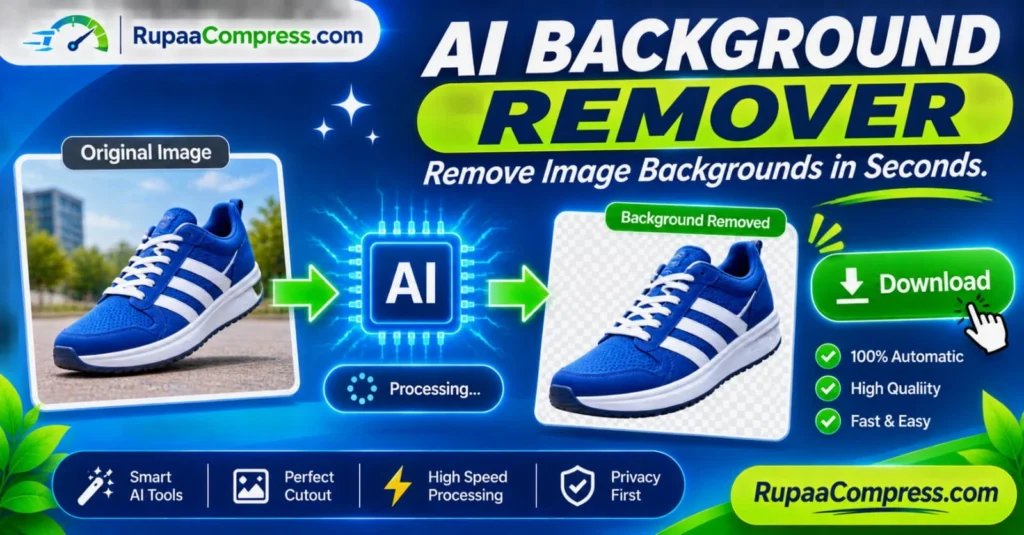
One common challenge is removing unwanted backgrounds from photographs. Imagine taking a product photograph of a pair of shoes on an outdoor path. The product may look attractive, but the surrounding environment could distract customers from the item you want to promote. Removing the background allows you to isolate the product and place it against a clean white, transparent or custom-designed background.
Traditionally, this process required graphic design experience and time-consuming manual editing. Designers often used selection tools, masking techniques and detailed brush adjustments to separate objects from their backgrounds. Although these methods can produce excellent results, they may be difficult for beginners and inefficient when processing large numbers of photographs.
Today, artificial intelligence has made background removal more accessible. AI-powered background removers can analyse an image, identify its main subject and separate the foreground from the surrounding background automatically. What once required considerable manual effort can now often be completed in a few simple steps.
In this guide, you will learn how AI background removal works, its benefits and limitations, how to prepare better photographs, and how to optimise transparent images for websites and online stores. You will also discover practical ways to manage image file sizes using tools such as RupaCompress.
What Is an AI Background Remover?
An AI background remover is an image-editing tool that uses artificial intelligence and computer vision techniques to separate the main subject of a photograph from its background.
The technology analyses visual information such as colours, shapes, textures, object boundaries and surrounding details. It then estimates which areas belong to the foreground subject and which areas should be removed.
For example, imagine photographing a pair of trainers against a busy outdoor background. An AI background remover can identify the shoes as the main subject and attempt to remove the pavement, trees and other surrounding objects.
The result is usually an image with a transparent background, commonly saved in PNG format. You can then place the isolated subject over a different background, add it to a product catalogue or use it in a promotional design.
AI background removal is useful for many types of images, including:
- E-commerce product photographs.
- Clothing, footwear and fashion images.
- Portraits and professional profile photographs.
- Social media graphics.
- Marketing banners and advertisements.
- Presentation graphics.
- Creative designs and digital artwork.
Although modern AI tools can produce impressive results, the quality of the final cutout depends on the original photograph, the complexity of the subject and the capabilities of the selected tool.
The Evolution of Background Removal: From Manual Editing to AI
Before AI-powered editing became widely available, removing image backgrounds was often a manual process.
Graphic designers typically used software such as Photoshop and other professional image-editing applications. They selected the subject using tools such as the Pen Tool, Quick Selection or Magic Wand, then refined the edges to separate it from the background.
This approach provided considerable control, but it also required practice and patience.
The Challenges of Traditional Background Removal
Time-consuming manual selection: Tracing around a product or person can take several minutes or much longer, depending on the image. Complex shapes, small details and irregular edges make the process particularly difficult.
Difficulty with fine details: Hair, fur, transparent objects, jewellery, shoe laces and other detailed elements can be challenging to isolate accurately. Incorrect selections may remove parts of the subject or leave unwanted background areas.
Professional software requirements: Some advanced editing applications require paid subscriptions or licences. Beginners may also need time to learn how to use selection and masking tools effectively.
Difficulties with large image collections: Online retailers and product photographers may need to process hundreds of photographs. Editing every image individually can create a significant workload.
AI background removal provides an alternative by automating much of the subject-selection process.
How Does AI Background Removal Work?
AI background removal relies on machine learning and computer vision. Many systems use image segmentation models to identify the different regions within an image.
Although the exact technology varies between platforms, the general process involves several stages.
1. Analysing the Original Photograph
The system first examines the uploaded image or selected image file. It identifies visual patterns such as edges, textures, colours, shapes and object boundaries.
For example, when analysing a photograph of a person standing in front of a wall, the system attempts to distinguish the person from the surrounding environment.
2. Detecting the Main Subject
The AI model estimates which areas belong to the foreground subject.
Depending on the tool, this may involve identifying people, animals, products, vehicles or other recognisable objects.
The model uses patterns learned during training to make these predictions. It does not simply remove every pixel with a different colour from the subject.
3. Creating a Segmentation Mask
After identifying the subject, the system generates a mask that separates the foreground from the background.
A mask describes which parts of the image should remain visible and which parts should become transparent. Some tools also support partially transparent edge pixels to create smoother transitions around complicated boundaries.
4. Removing the Background
The background is removed using the generated mask. The remaining subject is placed against a transparent background or another background selected by the user.
The final image can then be downloaded and used in other designs.
5. Refining the Final Cutout
Some background removers provide additional editing features, such as restoring missing areas, erasing unwanted objects, smoothing edges or adjusting the mask.
These controls are useful when the automatic result is not completely accurate.
Core Benefits of Using AI Background Removal Tools
AI-powered background removal can improve the image-editing workflow for businesses, creators and online sellers.
1. Remove Backgrounds More Quickly
One of the biggest advantages is reduced manual effort. Instead of tracing around every object, users can allow the AI tool to identify the main subject automatically.
This can be particularly useful for e-commerce businesses that regularly prepare product photographs for online catalogues.
For example, a footwear retailer may need clean images of trainers, sandals and formal shoes for hundreds of product listings. Automated background removal can make the initial editing process more efficient.
2. Create Professional Product Images
A clean product photograph makes it easier for customers to focus on the item being presented.
Removing a distracting background allows businesses to create consistent product images using white, transparent or branded backgrounds.
This is useful for online shops, product catalogues, promotional banners and digital advertisements.
However, product images should still represent the actual item accurately. Background removal should not be used to hide important product details or mislead customers.
3. Prepare Transparent Images
Many background removal tools allow users to export the final result with transparency.
Transparent PNG images are useful because they can be placed over different backgrounds without displaying the original photograph’s surroundings.
For example, a business can remove the background from a product photograph and place the isolated product over a promotional banner.
4. Improve Social Media Design Workflows
Content creators frequently need isolated subjects for social media graphics.
You can remove the background from a portrait, product photograph or other visual element and combine it with text, shapes, colours and additional design elements.
This makes it easier to create promotional graphics for Facebook, Instagram, Pinterest and other platforms.
5. Reduce Repetitive Editing Work
For businesses that manage large product collections, background removal is a repetitive task.
AI-assisted processing can reduce the time spent on initial selections and allow designers to focus more on quality checking, composition and final presentation.
The amount of time saved depends on the image quality, processing method and number of corrections required.
Where Can You Use Background-Removed Images?
Background removal has practical applications across different industries.
E-commerce and Online Shopping
Online retailers use clean product images to present items consistently across product pages and catalogues.
For example, an online clothing store may remove the background from photographs of shirts, dresses, shoes and accessories. The isolated products can then be placed against a consistent background.
This helps maintain a more organised product catalogue.
Fashion and Footwear Photography
Fashion businesses frequently work with photographs of clothing, handbags, trainers and other accessories.
Removing unwanted backgrounds can help highlight product shapes, colours and details.
For footwear photography, it is important to preserve small features such as laces, straps, stitching and soles. Always inspect the final cutout to make sure these details remain intact.
Social Media Marketing
Businesses can use transparent cutouts to create promotional posts, product announcements and advertising graphics.
For example, a restaurant can isolate a food photograph and place it over a branded promotional background. A clothing retailer can use an isolated product image in a seasonal sale design.
Professional Portraits
Background removal can help prepare profile photographs for websites, portfolios, presentations and professional biographies.
A portrait can be placed over a neutral background or a custom design that matches the intended use.
When editing photographs of people, make sure the final result preserves natural details around hair, clothing and facial outlines.
Presentations and Educational Materials
Teachers, students and business professionals can use transparent images to create cleaner presentation slides.
Removing unwanted backgrounds from objects, illustrations or product photographs can make it easier to arrange visual elements without distracting surroundings.
Step-by-Step Guide: How to Remove an Image Background
If you are new to background removal, the following workflow will help you understand the process.
The exact steps may differ depending on the AI background removal service you choose.
Step 1: Choose a Suitable Original Photograph
Start with the highest-quality original image available.
A photograph with good lighting, clear subject boundaries and sufficient contrast between the subject and background generally provides better results.
For example, if you want to remove the background from a pair of shoes, choose a photograph where the entire shoe is visible and the edges are not hidden by surrounding objects.
Step 2: Select an AI Background Removal Tool
Choose an AI background remover that supports your image format and intended output.
Before uploading a photograph, review the service’s privacy policy, processing method, usage limits and download options.
Some services process images using cloud servers, while others may offer local processing depending on their technology.
Step 3: Upload or Select Your Image
Follow the tool’s instructions to select your photograph.
If the service processes images in the cloud, the original file will generally need to be transmitted to its servers. If the tool uses local processing, the file may be handled directly on your device.
Make sure you understand the processing method before using confidential business photographs or personal images.
Step 4: Allow the Tool to Detect the Subject
Start the background removal process.
The AI system analyses the photograph and attempts to separate the main subject from the surrounding background.
Processing time can vary depending on the image dimensions, model complexity, device capabilities and whether cloud processing is used.
Step 5: Review the Cutout
Do not immediately assume the result is perfect.
Zoom in and inspect the edges of the subject. Check areas such as hair, clothing, footwear, fingers, transparent objects and other fine details.
Look for missing parts of the subject, unwanted background fragments or rough outlines.
If the tool provides manual refinement controls, use them to correct any visible problems.
Step 6: Download the Transparent Image
When the result looks acceptable, download the edited image.
PNG is commonly used for transparent images because it supports an alpha channel. An alpha channel stores transparency information, allowing the background to remain invisible when the image is placed over another design.
Keep an original copy of the photograph so that you can repeat the editing process if necessary.
Step 7: Resize and Compress the Final Image
After removing the background, you may need to adjust the image dimensions and reduce its file size.
For example, a product image intended for an online store may need a consistent square canvas. A transparent graphic for a promotional banner may require a different size.
Use suitable image tools to resize and compress the file while preserving transparency where required.
Step 8: Publish Your Image
Upload the final image to your website, online store, presentation or social media platform.
For website images, include descriptive alt text that accurately explains the image.
For example:
“Black running shoe isolated on a transparent background.”
This description is more useful than adding unrelated search keywords.
How to Get Better Results from AI Background Removers
The quality of the original photograph has a major influence on the final result. A well-prepared image can make subject detection easier and reduce the need for manual corrections.
Use good lighting: Photograph your subject in an evenly lit environment. Strong shadows can sometimes make the boundary between the subject and background harder to identify.
Choose a contrasting background: When possible, use a background that differs visually from the main subject. This can help the system distinguish the foreground more clearly.
Keep the entire subject visible: Avoid cropping important parts of the object or allowing other objects to cover its edges.
Avoid excessive motion blur: Blurred edges can make it difficult for an AI model to identify the correct subject boundaries.
Check fine details: Pay particular attention to hair, fur, transparent materials, thin straps and small accessories.
Use high-resolution originals: A sufficiently detailed source photograph gives the tool more visual information to analyse. However, higher resolution does not guarantee perfect results.
Review before publishing: Always compare the final cutout with the original image, especially when the photograph represents a product customers will purchase.
Understanding Transparent PNG Images
After removing a background, many users choose PNG as the output format. Understanding transparency helps you use the resulting image correctly.
A normal JPEG photograph generally displays a solid background. PNG images can contain transparent pixels, allowing the background to show through when the image is placed over another visual element.
For example, imagine removing the background from a product photograph of a watch. The remaining watch can be placed over a white background, a coloured banner or a promotional design.
However, transparent PNG files can be larger than compressed JPEG photographs because they may contain additional image and transparency information.
If your website uses many transparent product images, it is important to consider image dimensions, compression and format compatibility.
WebP also supports transparency and may provide more efficient file sizes in suitable workflows. Check your website platform and image-processing tools before converting transparent files.
Image Optimization After Background Removal
Removing the background is only one stage of preparing an image for online publishing.
Transparent cutouts can still have large dimensions and file sizes. If you upload oversized images directly to a website, they may use unnecessary storage and bandwidth.
Image optimization helps prepare the final asset for its intended use.
Resize Images to the Required Dimensions
Choose image dimensions based on where the image will appear.
For example, an online shop may use square product images for a consistent catalogue layout. A website banner may require a wider image with additional space around the subject.
Avoid enlarging small cutouts unnecessarily because this can reduce visual sharpness.
Compress Images Carefully
Compression reduces the amount of data required to store an image.
When working with transparent graphics, choose a compression method that preserves transparency if you need the background to remain invisible.
Do not convert a transparent image to JPEG if you need to retain transparency. JPEG does not support transparent backgrounds.
Use Descriptive File Names
Rename your files using meaningful descriptions.
Examples include:
black-running-shoe-transparent.pngwhite-sneakers-product-cutout.webpprofessional-profile-photo.pngproduct-background-removed.webp
Descriptive filenames make image libraries easier to organise and can provide useful context for search engines.
Add Relevant Alt Text
Alt text should explain what the image shows.
For example:
“White leather trainers isolated on a transparent background.”
Write naturally and avoid keyword stuffing. If an image is purely decorative and adds no meaningful information, follow appropriate accessibility practices for decorative images.
Privacy Considerations When Using Online AI Background Removers
Background removal often involves personal or commercially valuable images. This makes privacy an important consideration when choosing an editing tool.
For example, an online retailer may have unpublished product photographs, while a photographer may work with private client portraits. Uploading these files to an unfamiliar service without understanding its data-handling practices can create unnecessary risks.
Before using a cloud-based AI background remover, review its privacy policy and check:
- Whether original images are uploaded to remote servers.
- How long uploaded photographs are retained.
- Whether images may be used for model training.
- Whether files are shared with third-party service providers.
- Whether users can request deletion of uploaded content.
- Whether the service offers appropriate privacy and account controls.
Local Browser-Based Image Processing
Some online image utilities use client-side technologies such as JavaScript and the HTML5 Canvas API to process selected files directly in the browser.
When an image tool genuinely performs the relevant operation locally, the original file does not need to be uploaded to a remote processing server for that operation.
This can be useful when resizing, cropping or compressing private photographs and business graphics.
However, local image processing and cloud-based AI generation are not necessarily the same thing. Many advanced AI background removal models require substantial computing resources and may rely on remote servers.
Do not assume that an AI background remover processes files locally simply because it is available through a website.
RupaCompress provides image utilities for tasks such as compression, resizing, cropping and format conversion. You can explore the available tools at RupaCompress.com. Check the processing method of the specific tool before using it with confidential images.
Common Background Removal Mistakes to Avoid
Even with advanced AI tools, certain mistakes can reduce the quality of the final image.
Using poor-quality photographs: Blurry or poorly lit images can make subject detection more difficult. Start with a clear original whenever possible.
Ignoring small details: Thin objects, hair, shoe laces and transparent materials may be removed or damaged during automatic processing. Zoom in and inspect these areas.
Expecting every image to produce perfect results: Complex backgrounds, overlapping objects and similar foreground and background colours can affect accuracy. Some images will require manual corrections.
Removing shadows without considering the design: Natural product shadows can help objects look realistic. Removing every shadow may make a product appear as if it is floating. Consider whether a subtle shadow should be retained or added during the design process.
Using the wrong output format: JPEG cannot preserve transparent backgrounds. Choose PNG or another suitable transparency-supporting format when necessary.
Uploading unoptimized images: Large transparent files can increase website page weight. Resize and compress them appropriately before publishing.
Ignoring commercial image accuracy: Product cutouts should accurately represent the original item. Do not remove important details or alter a product in a way that misleads customers.
Frequently Asked Questions (FAQs)
How does an AI background remover work?
An AI background remover uses machine learning and image segmentation techniques to identify the main subject in a photograph. It creates a mask separating the foreground from the background and removes the unwanted areas.
Can I remove an image background automatically?
Yes. Many AI background removal tools can identify a subject and remove its background automatically. However, complicated images may require manual adjustments to improve the final result.
What is the best format for a transparent background?
PNG is a widely supported format for transparent images. WebP also supports transparency and can provide smaller file sizes in suitable workflows. Choose the format according to your website and publishing requirements.
Can AI remove backgrounds from product photographs?
Yes. AI background removal can be used for product photographs such as shoes, clothing, accessories, electronics and household items. Results depend on the photograph and the capabilities of the selected tool.
Can I remove backgrounds from multiple images?
Some background removal services support batch processing, allowing users to process several images together. Availability may depend on the platform, subscription and processing limits.
Does background removal reduce image quality?
Background removal does not necessarily reduce the resolution of the remaining subject, but the selection process can remove fine details or create rough edges. Inspect the result carefully and avoid unnecessary compression afterwards.
Can I use background-removed images for my online store?
Yes. Transparent product images are commonly used in e-commerce catalogues, product pages and promotional graphics. Make sure the final image accurately represents the product and meets the requirements of your online selling platform.
Are free AI background removers available?
Yes. Some platforms offer free background removal with limits on image resolution, daily processing or downloads. Other services require payment for higher-resolution exports or batch processing. Check the current pricing and usage conditions.
Are online background removal tools safe?
Safety depends on how each service processes and stores images. Some tools use cloud processing, while others offer local processing. Read the privacy policy and understand whether files are uploaded, retained or used for other purposes.
Can I compress a transparent PNG image?
Yes. Transparent PNG files can be optimized using suitable lossless or lossy compression methods that preserve transparency. WebP may also be an option if your website supports it. Always compare the output before replacing the original file.
Conclusion
AI background removal has made it easier for online sellers, designers, photographers and content creators to prepare professional-looking images. Instead of spending significant time tracing around every subject manually, you can use AI-powered tools to identify objects and create transparent cutouts in a much shorter workflow.
From e-commerce product photography and fashion catalogues to social media graphics and website illustrations, background removal offers many practical applications.
However, the quality of the final result still depends on the original photograph and the capabilities of the selected tool. Good lighting, clear subject boundaries and careful quality checking can help produce better cutouts.
After removing the background, remember to prepare your image for online use. Choose the correct dimensions, preserve transparency where necessary, compress the file appropriately and add descriptive alt text.
Ready to optimise your images for online publishing? Visit RupaCompress.com to explore free image tools for cropping, resizing, compressing and converting images. Prepare cleaner visual assets, manage image file sizes and discover more practical image optimization guides on the RupaCompress Blog.