Finding an important photograph or graphic in a small, blurry, low-resolution format can be frustrating. You might have an old family photograph, a product image, a website graphic, or a picture downloaded from a messaging app that looks clear at its original size but becomes pixelated when enlarged.
Traditional image resizing can increase an image’s dimensions, but it cannot genuinely recover details that were never captured. As a result, enlarged photographs often appear soft, blurry, or distorted.
Artificial intelligence has introduced a more advanced approach to this problem. AI image upscaling uses machine learning models to analyse an image and generate additional visual details while increasing its resolution. Depending on the original image and the upscaling model, the result can look sharper and more detailed than a traditionally resized version.
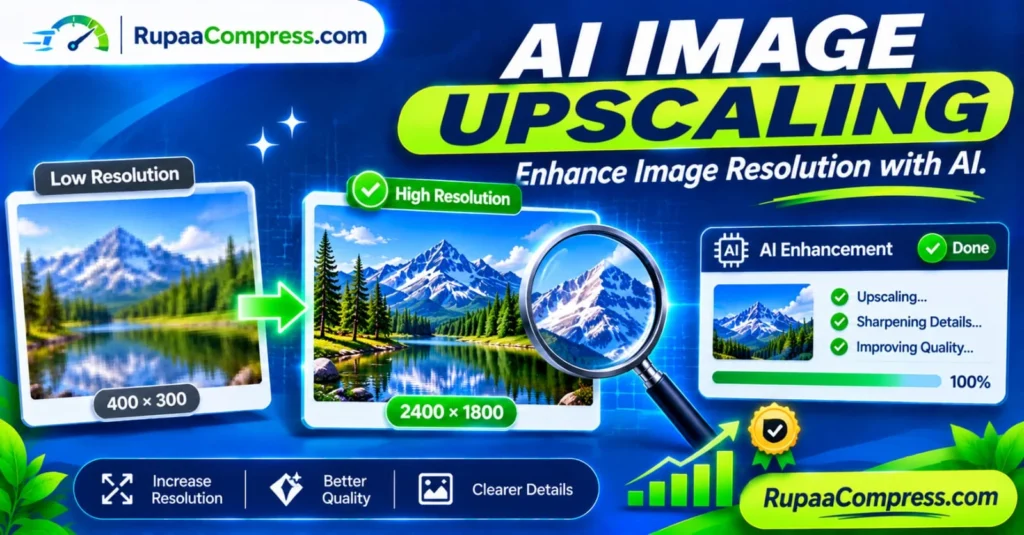
For example, an AI upscaler might enlarge a 400 × 300-pixel image to 2400 × 1800 pixels. However, the improved appearance is generated by the AI model rather than recovered from the original photograph. The quality of the result depends on the source image, the model, and the settings used.
In this guide, you will learn how AI image upscaling works, how it differs from traditional resizing, where it is useful, and how to prepare enhanced images for websites and digital publishing. You will also discover how to use RupaCompress image tools to resize, compress, and convert images as part of your publishing workflow.
What Is AI Image Upscaling?
AI image upscaling is a technology that increases an image’s pixel dimensions using artificial intelligence. Unlike conventional resizing methods, which calculate new pixels from existing neighbouring pixels, AI upscaling models use patterns learned from training images to estimate what additional details could look like.
For example, imagine you have a small photograph of a mountain landscape. When you enlarge it using a traditional resizing tool, the software calculates new pixels based on the existing image. The mountain edges may become softer, and the grass, trees, and rocks may lose definition.
An AI upscaler approaches the same photograph differently. It analyses visual patterns and may generate sharper edges, more defined textures, and additional details that resemble those found in natural photographs.
AI-generated details are not guaranteed to match the original scene exactly. This is particularly important when enhancing historical photographs, product images, official documents, or other pictures where accuracy matters.
Why Traditional Image Resizing Can Reduce Image Quality
Traditional image resizing remains useful for everyday image editing. However, enlarging a small image significantly can expose its limitations.
Most standard resizing methods use mathematical interpolation to estimate the colour values of newly created pixels. Common methods include nearest-neighbour, bilinear, and bicubic interpolation.
These methods can produce good results when making small adjustments to image dimensions. However, they cannot independently understand the objects, textures, or subjects shown in a photograph.
1. Pixelation and Blurry Edges
When a small image is enlarged, its existing pixels become more visible. Objects may develop jagged edges, and fine details can appear blocky or blurred.
This is especially noticeable when enlarging small photographs for banners, product displays, presentations, or large screens.
2. Loss of Fine Details
A low-resolution photograph may contain very little information about small textures. Enlarging it does not automatically restore those missing details.
For example, facial features, hair, fabric patterns, and distant objects may remain unclear after ordinary resizing.
3. Soft or Unnatural Appearance
Some resizing methods produce smooth results, but excessive enlargement can make photographs look soft. Sharpening filters may improve edge contrast, although too much sharpening can introduce halos and unwanted noise.
How AI Image Upscaling Works
AI image upscaling uses machine learning models trained to recognise patterns in visual data. Some popular approaches use deep neural networks, including convolutional neural networks and generative models.
The exact process depends on the technology behind the tool, but a typical workflow involves several stages.
1. Image Analysis
The AI model examines the input image to identify patterns such as edges, textures, shapes, colours, and object structures.
It may recognise common visual features such as buildings, faces, trees, clothing, and natural landscapes.
2. Resolution Enhancement
The model increases the image’s pixel dimensions. During this process, it estimates additional pixel information based on the patterns it has learned.
For example, a 400 × 300 image could be processed into a 2×, 4×, or higher-resolution output, depending on the tool.
3. Detail Reconstruction
Some AI models generate additional details to make the enlarged image appear more realistic. They may improve the appearance of hair, skin, fabric, foliage, and other textures.
However, these details are predictions. They should not be treated as verified information about the original photograph.
4. Sharpening and Image Enhancement
Many AI upscaling applications also provide additional adjustments, such as noise reduction, sharpening, colour correction, and face enhancement.
These features can improve the overall appearance, but aggressive enhancement may create artificial textures or change important details.
AI Upscaling vs Traditional Image Resizing
Although both methods increase image dimensions, they use different approaches.
| Feature | Traditional Resizing | AI Image Upscaling |
|---|---|---|
| Main approach | Mathematical interpolation | Machine learning models |
| New pixels | Calculated from existing pixels | Predicted using learned visual patterns |
| Fine details | Limited reconstruction | Can generate additional details |
| Processing | Often lightweight | Can require more processing power |
| Best use | Everyday resizing | Significant enlargement and enhancement |
| Accuracy | Preserves existing visual information through interpolation | May introduce details that were not originally present |
Traditional resizing is often sufficient when you only need to adjust an image for a website, social media post, or document.
AI upscaling is more useful when you want to enlarge a small image and improve its perceived visual quality.
Neither method can guarantee perfect results for every photograph.
Where Can You Use AI Image Upscaling?
AI image upscaling has practical applications across photography, digital marketing, online shopping, and content creation.
1. Old Family Photographs
Old photographs may be available only as small digital scans or low-quality copies. AI enhancement tools can help improve their appearance before printing, sharing, or archiving.
For important historical photographs, always retain the original scan. AI-generated details may alter facial features or other historically significant information.
2. E-commerce Product Photography
Online stores need clear product photographs to help customers understand what they are buying.
A small product image may not look suitable for a larger product display. AI upscaling can help improve its appearance, although generated details should never misrepresent the actual product.
3. Website and Blog Images
Bloggers and website owners often need images at different dimensions for featured images, article illustrations, banners, and thumbnails.
AI upscaling may help when the available source image is too small. After enhancement, the image should still be resized and compressed appropriately for web performance.
4. Social Media Content
Social media creators may need to adapt photographs for different publishing formats. AI enhancement can help improve the appearance of older or small source images before preparing them for platforms such as Facebook, Instagram, and Pinterest.
Remember that each platform may apply its own image processing after upload.
5. Presentations and Marketing Materials
Small graphics can look poor when displayed on large presentation screens. AI upscaling may improve the appearance of certain graphics before they are added to PowerPoint slides, marketing presentations, or digital advertisements.
For logos and illustrations, a vector version such as SVG is often a better option than enlarging a low-resolution raster image.
How to Upscale an Image Using AI
The exact steps depend on the AI upscaling service you choose. However, the following workflow is suitable for most online AI image enhancement applications.
Step 1: Select Your Original Image
Choose the image you want to enhance from your computer or device.
Whenever possible, use the original image rather than a screenshot or repeatedly compressed copy. A cleaner source generally gives an AI model more useful information to work with.
Step 2: Choose an AI Upscaling Tool
Select a reputable AI image upscaling application that supports your image format and desired output dimensions.
Check its processing method, file-size limits, privacy policy, pricing, and commercial-use conditions before uploading sensitive or business-related images.
Step 3: Select the Upscaling Level
Many applications offer enlargement options such as 2× and 4×.
For example:
- Original: 400 × 300 pixels
- 2× output: 800 × 600 pixels
- 4× output: 1600 × 1200 pixels
- 6× output: 2400 × 1800 pixels
These are examples of proportional enlargement. The actual output dimensions depend on the tool and its supported settings.
Avoid choosing the highest available setting automatically. Excessive enlargement may introduce artificial details without providing a meaningful improvement.
Step 4: Process and Review the Result
Run the enhancement and compare the output with the original image.
Pay attention to faces, text, product edges, fine patterns, and background details. Look for unnatural textures, distorted objects, or changes to important features.
If accuracy matters, do not rely on an AI-enhanced image as the only source.
Step 5: Download the Enhanced Image
Once you are satisfied with the result, download the enhanced file.
Keep an untouched copy of the original photograph. This allows you to compare results or repeat the enhancement using different settings.
How to Optimize AI-Upscaled Images for Websites
AI upscaling can increase image dimensions and file size considerably. A high-resolution image is not automatically suitable for a website.
Large image files can increase page weight and affect loading performance, particularly on mobile connections.
A better approach is to enhance the image first and then optimize it for its final purpose.
Step 1: Resize to the Required Dimensions
Do not upload an unnecessarily large image if your website only displays it at a smaller size.
For example, if a blog layout displays a featured image at approximately 1200 pixels wide, a 6000-pixel-wide image may be unnecessary.
Use an image resizer to adjust the dimensions to match the intended display.
Step 2: Compress the Image
Image compression reduces file size by removing or simplifying image data.
Lossy compression can reduce file size significantly, but excessive compression may introduce visible artefacts. Lossless compression preserves the original pixel information but may offer smaller reductions.
Choose a balance between file size and visual quality.
Step 3: Convert to a Suitable Format
The right image format depends on how the image will be used.
- WebP: A modern format suitable for many website photographs and graphics. It supports lossy and lossless compression, as well as transparency.
- JPEG: Commonly used for photographs and compatible with almost all platforms.
- PNG: Useful for graphics requiring transparency or lossless image storage, although files can be larger.
- AVIF: A modern format that can provide efficient compression, depending on browser and workflow support.
Always check that your website, CMS, and target platforms support the selected format.
Step 4: Add Descriptive Alt Text
Write meaningful alternative text that explains the image’s purpose or content.
For example:
- Weak alt text:
image123.jpg - Better alt text:
AI image upscaling comparison showing an enlarged mountain landscape
Alt text helps accessibility and gives search engines additional context about the image.
Step 5: Preview Before Publishing
Check the final image on desktop and mobile screens. Make sure it looks sharp at its actual display size and that the file is not unnecessarily large.
Using RupaCompress to Resize and Compress Enhanced Images
After using an AI upscaler, you may still need to prepare the resulting image for your website, blog, online store, or social media account.
RupaCompress provides browser-based image utilities for everyday image optimization tasks.
You can explore the available tools at RupaCompress to help with:
- Image compression: Reduce image file sizes while balancing visual quality.
- Image resizing: Adjust width and height to suit website layouts and publishing requirements.
- Image conversion: Prepare images in suitable formats, depending on the formats supported by the tool.
For tools that process images entirely in your browser, the image operation takes place on your device rather than requiring the file to be sent to a remote processing server. Check the specific tool’s behaviour and privacy information before using it for confidential material.
Important: Image compression, resizing, and format conversion are not the same as AI image upscaling. These optimization tools prepare an image for publishing; they do not necessarily reconstruct missing details using an AI model.
Is AI Image Upscaling Safe for Personal Photographs?
AI upscaling can involve privacy considerations, especially when using online services.
Some AI applications process uploaded images on remote servers. Depending on the provider’s policies, uploaded files may be stored temporarily, retained for a longer period, or used under specific service conditions.
Before uploading personal photographs, confidential documents, customer images, or commercial artwork, review the provider’s privacy policy and data-retention terms.
Consider these precautions:
- Choose established services with clear privacy policies.
- Check whether processing happens locally or on remote servers.
- Avoid uploading confidential photographs to services you do not trust.
- Review whether uploaded images may be retained or used for model improvement.
- Keep original copies of important photographs.
- Remove unnecessary personal metadata before sharing images publicly.
Local browser-based image optimization can reduce the need to upload files for supported operations. However, it is important not to assume that every online AI service or every browser-based tool processes files locally.
Pro Tips for Better AI Upscaling Results
Start with the best available source. A clean original photograph generally provides a better starting point than a heavily compressed screenshot.
Avoid excessive enlargement. A 2× enlargement may look more natural than an aggressive 8× enlargement, depending on the original image.
Compare before and after. Always inspect the output at 100% zoom to identify artificial textures, distorted edges, or unwanted changes.
Be careful with faces. AI face enhancement can change facial features. Avoid using generated details as an accurate representation of someone’s appearance.
Keep the original file. Never replace your only copy of an important photograph with an AI-enhanced version.
Optimize after upscaling. Resize and compress the enhanced image according to its final use instead of uploading an unnecessarily large file.
Choose the correct format. WebP or AVIF may be suitable for website photographs, while PNG may be preferable when transparency is required.
Frequently Asked Questions
What is AI image upscaling?
AI image upscaling is a technology that uses machine learning models to increase an image’s resolution and generate additional visual details. It can improve the perceived clarity of small or low-resolution photographs.
Can AI make a low-resolution image HD?
AI upscaling can increase pixel dimensions and improve the appearance of some low-resolution images. However, it cannot guarantee an exact recovery of the original details. Some details in the enhanced result are generated predictions.
What is the difference between AI upscaling and resizing?
Traditional resizing calculates new pixels from existing image information. AI upscaling uses trained models to predict additional visual details while enlarging the image.
Can I upscale a 400 × 300 image to 2400 × 1800?
Yes, some AI upscaling applications support this enlargement. The output would be six times wider and six times taller than the original. However, the final visual quality depends on the original image and the AI model.
Does AI upscaling improve image quality?
It can improve perceived sharpness, textures, and detail in suitable images. However, it may also introduce artificial details or distortions, so results should always be checked.
Does AI upscaling increase file size?
Usually, yes. Increasing pixel dimensions generally creates a larger image file, although the final file size also depends on the image format and compression settings.
Is AI image upscaling free?
Some services provide free upscaling with restrictions, such as limited daily usage, maximum output dimensions, watermarks, or file-size limits. Other services require a subscription or payment.
Can I use AI-upscaled images commercially?
Commercial use depends on the original image’s copyright, the AI service’s terms, and any applicable rights relating to the generated content. Check the provider’s licensing conditions before using enhanced images in advertisements, product listings, or commercial projects.
Can I use RupaCompress to upscale images with AI?
RupaCompress provides image optimization utilities such as compression, resizing, and conversion. These are different from AI-powered detail reconstruction. Check the current tools available on the website before assuming an AI upscaling feature is supported.
Conclusion
AI image upscaling provides a useful way to improve the appearance of small and low-resolution photographs. By analysing image patterns and predicting additional visual details, AI models can produce enlarged images that may look sharper and more detailed than traditionally resized versions.
However, AI enhancement is not perfect. Generated details may differ from the original scene, and excessive enlargement can create unnatural results. Always compare the enhanced image with its original version, especially when accuracy is important.
For website owners, bloggers, and digital creators, upscaling is only one part of an effective image workflow. After enhancing an image, resize it to the required dimensions, compress it carefully, choose an appropriate file format, and add descriptive alt text.
Explore the free image optimization utilities at RupaCompress to resize, compress, and convert images for your website and everyday digital projects. You can also visit the RupaCompress Blog for more practical image editing, optimization, and SEO guides.