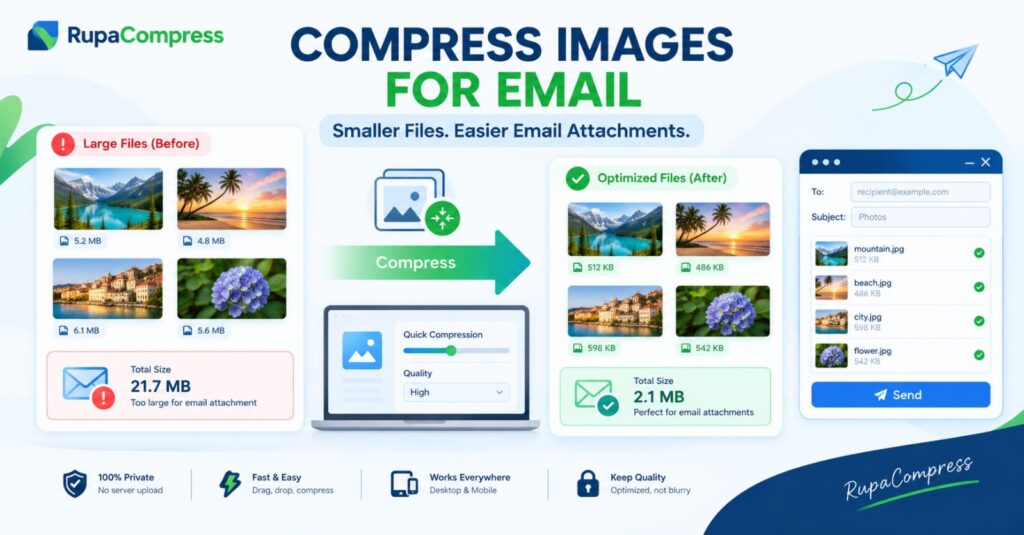
Sending photos through email should be simple, but large image attachments can quickly turn a routine task into a frustrating experience. Imagine taking beautiful holiday photographs, preparing product images for a client, or collecting important project screenshots, only to receive a message saying that your email cannot be sent because the attachments are too large. Modern smartphones capture high-resolution images with impressive detail, but these photographs can occupy several megabytes each. When you attach four or five uncompressed pictures to a single email, their combined size can easily exceed the limit imposed by your email provider. For example, a collection of photographs with a total file size of 21.7 MB might be too large for a particular email service or account, especially after accounting for the additional overhead involved in sending attachments. Gmail, Outlook, and other email services have their own attachment restrictions, so it is always worth checking the limit for the account you use. Fortunately, you do not have to delete photographs, reduce their quality unnecessarily, or send multiple emails just to share a few pictures. Compressing images for email reduces the amount of data required to store and send your photographs while helping them retain enough detail for everyday viewing. For example, a collection that starts at 21.7 MB might be reduced to approximately 2.1 MB with suitable compression, although the final result depends on the original photographs, their dimensions, and the settings you choose. This makes attachments easier to manage and may help you stay comfortably within your email provider’s limits. With a free browser-based image tool such as RupaaCompress, you can prepare your photographs before attaching them to an email, without needing professional editing software or advanced technical knowledge.
Why Are Large Photo Attachments Difficult to Send?
Email attachment limits exist for several practical reasons, including storage capacity, bandwidth management, security, and reliable message delivery. Email systems must handle enormous numbers of messages every day, and allowing unrestricted attachments would increase the resources required to store, scan, transmit, and deliver those messages. Large attachments can also take longer to upload from your device, particularly when you are working with a slow internet connection or sending files from a mobile network. The recipient may then have to download the same large files, which can be inconvenient when they are using a smartphone or have limited data. Another important detail is that an email’s attachment limit does not always correspond exactly to the combined size of the original files. Email encoding can increase the amount of data needed to transmit attachments, meaning files that appear to fit within a stated limit may still cause a message to exceed it. This is why reducing your image sizes before sending them is a practical solution. The right compression method depends on the type of image and how it will be used. For ordinary photographs, JPEG compression often provides a useful balance between file size and visual quality. WebP may also be suitable when the recipient’s software supports it, while PNG can be preferable for screenshots, diagrams, or graphics that require transparency. However, you should not automatically convert every image into the smallest available format, because compatibility and image clarity still matter. If you are sending product photographs to a customer, for instance, fine details and colours may be important. If you are sharing a group of holiday pictures with friends, a smaller file size may be more important than preserving every detail of the original. The goal is to choose a reasonable balance between image quality, attachment size, and the recipient’s needs.
How to Compress Images for Gmail and Outlook Using RupaaCompress
Reducing the size of your email attachments is straightforward when you follow a simple workflow. First, select the photographs you want to send and keep the original copies on your computer or phone. Next, open RupaaCompress and choose the image compression tool. Select the images you want to optimise and follow the available controls to prepare them for email. Depending on the tool’s supported features, you may be able to process several images in one session, helping you avoid editing every photograph separately. Once your images are ready, choose an appropriate compression level or quality setting. If your original photographs are several megabytes each, reducing their dimensions may also help when you only need to display them on a screen rather than print them at a large size. For example, a high-resolution photograph intended for viewing in an email might not need to retain its original 4000-pixel width. However, check the intended use before resizing, especially when the recipient needs the original detail for printing, design work, or professional review. After compression, compare the resulting photographs with the originals. Check that faces remain clear, colours look natural, and small details are still visible. Avoid applying excessive compression simply to achieve the smallest possible file size. When you are satisfied with the results, download the compressed images and check their total size. Open Gmail, Outlook, Apple Mail, or your preferred email application, create a new message, attach the optimised photographs, and confirm that the attachments are within the applicable limit before sending. As an example, a 21.7 MB collection that becomes 2.1 MB would be considerably easier to attach, but your actual results will vary. Also remember that a particular email provider may impose a different limit, and some services offer cloud links when attachments exceed the permitted size. If you need to send dozens of photographs, consider organising them into folders or a ZIP archive, keeping in mind that already-compressed JPEG and WebP images may not become much smaller when zipped.
Privacy Tips, Common Mistakes, and Frequently Asked Questions
When preparing photographs for email, privacy is just as important as file size. Personal photographs, unpublished product images, customer proofs, and confidential project graphics may contain information you do not want to share with an unfamiliar service. Before using an online compressor, check how it handles the files you select. A tool that processes images entirely inside your browser can reduce exposure because the original files do not need to be uploaded to a remote server for compression. However, not every browser-based editor works this way, so review the tool’s privacy information instead of assuming that all online services offer the same protection. RupaaCompress provides browser-based image utilities to help users prepare their images, and you should confirm the processing behaviour of the specific tool before using it with sensitive files. There are also a few practical habits worth following whenever you send photo attachments. Keep a copy of important originals, use descriptive filenames such as family-vacation-photo.jpg or client-product-image.jpg, and avoid sending more images than the recipient needs. If visual quality is especially important, send a small selection of compressed preview images and provide a suitable alternative for the original files when necessary.
What is the maximum email attachment size? The limit depends on the email provider and account. Gmail commonly permits up to 25 MB in total attachments for personal accounts, while Outlook and other services have their own restrictions and may apply different rules depending on the account type and sending method. Always check the current limit for your service.
Will compressing photographs make them blurry? Not necessarily. Moderate compression and sensible resizing can reduce file sizes while keeping photographs clear, but excessive compression can introduce visible artefacts and loss of detail.
Should I use JPEG or WebP for email? JPEG is a practical choice for many photographs because it is widely supported. WebP can reduce file sizes effectively in many cases, but JPEG may be a safer option when you are unsure which formats the recipient’s software accepts.
Can I compress multiple images at once? This depends on the tool you choose. A batch-capable compressor can save time when you need to send several photographs, provided you check each file and the combined attachment size afterwards.
What should I do if my email attachments are still too large? Reduce the image dimensions where appropriate, choose a suitable compression setting, send fewer images per message, or use an approved file-sharing service for larger originals. Sending large photographs no longer needs to be a frustrating part of your daily work. By checking attachment limits, choosing the right image format, and compressing photographs before sending them, you can make email sharing more convenient for both yourself and the recipient. Visit RupaaCompress to explore its image tools, prepare lighter photographs, and make your everyday image-sharing workflow easier.