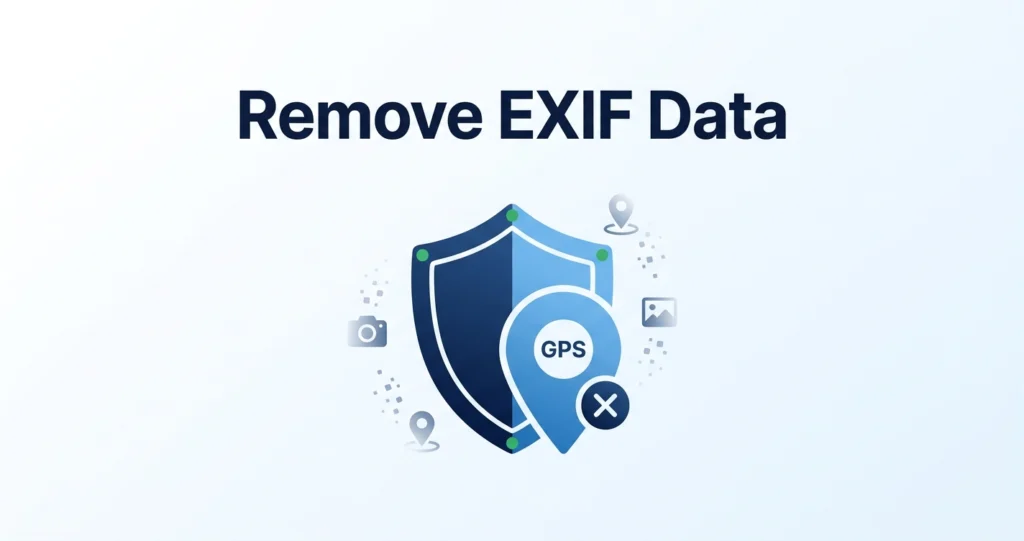
Every photo you take with a smartphone or digital camera contains hidden metadata called EXIF data. It includes the date and time, camera model, settings — and often the exact GPS location where the photo was taken.
When you share that photo online, you might be sharing more than you realize. A photo of your living room could be revealing your home address. A photo of your child at school could be revealing their school’s exact location.
Here’s how to remove EXIF data — for free, in your browser, in a few seconds.
What is EXIF data?
EXIF stands for Exchangeable Image File Format. It’s a standard that camera manufacturers use to store technical details inside every photo:
- Date and time — when the photo was taken.
- Camera make and model — e.g., iPhone 14 Pro, Canon EOS R5.
- Camera settings — aperture, shutter speed, ISO, focal length.
- GPS coordinates — latitude and longitude, often precise to a few meters.
- Orientation — which way the camera was held.
- Software — which app was used to edit the photo.
- Copyright info — if you or your camera embedded it.
Most of this is harmless. But GPS data can reveal your home address, workplace, or your child’s school. And photo metadata has been used to track journalists, activists, and public figures.
How to check EXIF data on any photo
Before you share, you can check what’s embedded. Most operating systems show some EXIF info:
- Windows: Right-click the file → Properties → Details tab.
- Mac: Open in Preview → Tools → Show Inspector → EXIF tab.
- iPhone: Open the photo → tap the “i” icon at the bottom.
- Android: Open in Google Photos → swipe up → info icon.
If you see GPS coordinates, and you don’t want to share them, strip them first.
How to remove EXIF data (free method)
The easiest way is to re-encode the image. Most image tools re-encode automatically when you save a file through them. Here’s how with Rupaa:
- Open our Compress Image tool — or any Rupaa tool.
- Drop your photo in.
- Process at any quality level (even 100%).
- Download the result — EXIF and GPS are gone.
Re-encoding strips all metadata, including GPS, camera info, and edit history. Your file never leaves your device.
Which Rupaa tools strip EXIF?
Any tool that re-encodes the image will strip EXIF. On Rupaa, that includes:
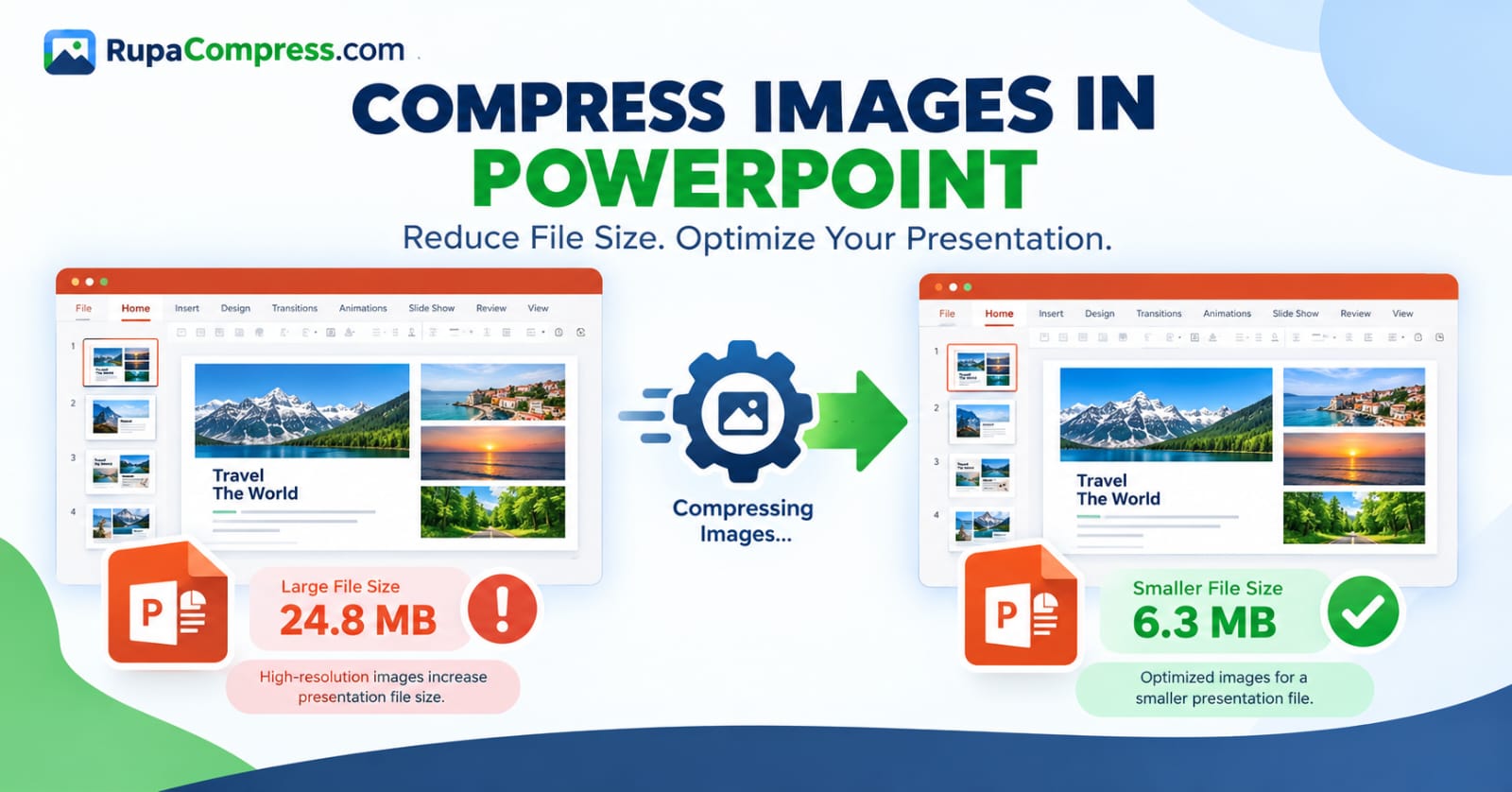
- Compress Image — smallest file size.
- Resize Image — change dimensions.
- Convert Image — change format.
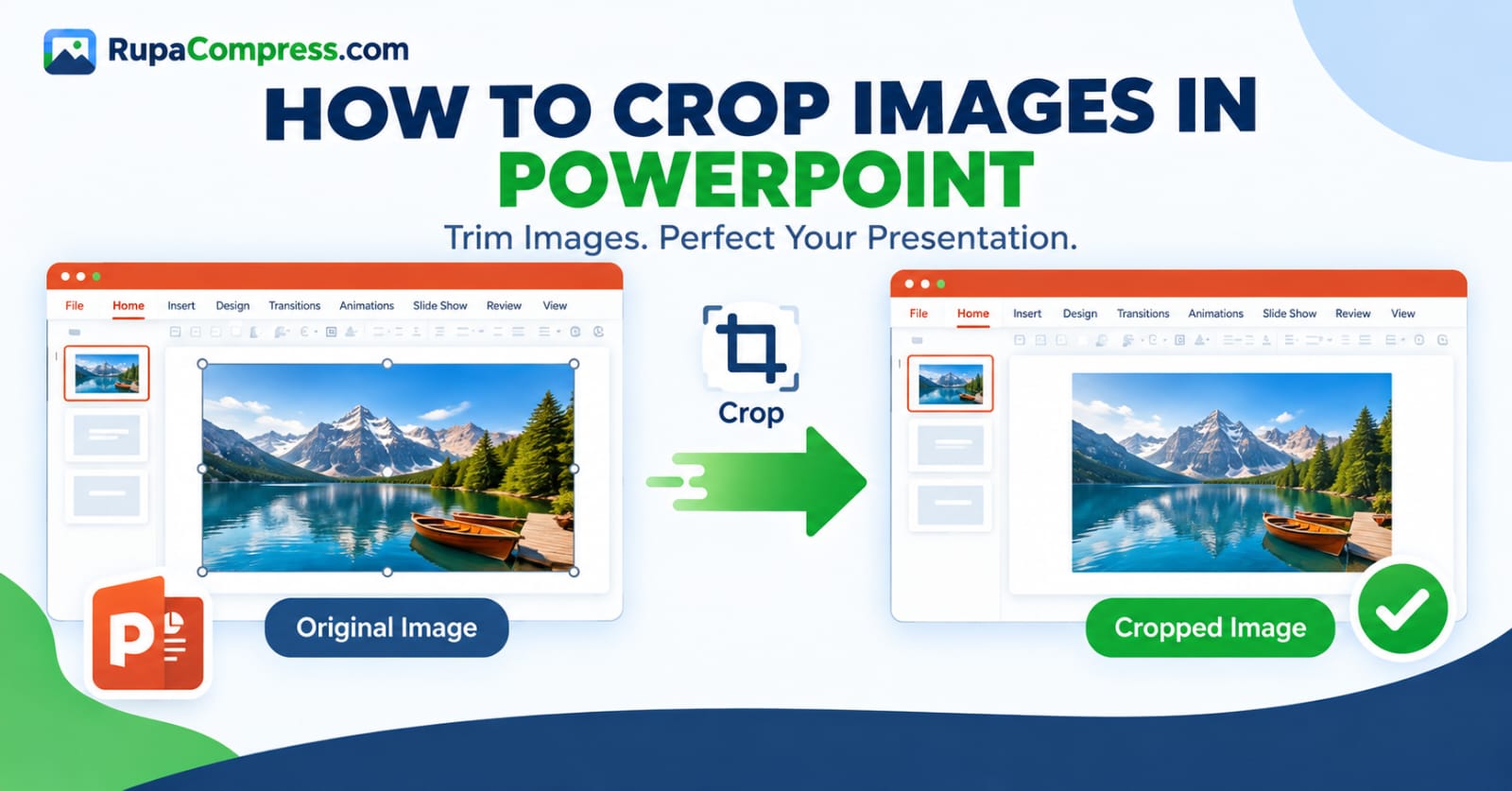
- Crop Image — trim to a new shape.
- Watermark Image — add text marks.
- Rotate & Flip — fix orientation.
- Photo Effects — apply filters.
Even if you don’t need the specific edit, running the photo through any of these tools removes metadata as a side effect.
Does cropping remove GPS data?
Usually yes, if the tool re-encodes the image. But cropping alone doesn’t always strip metadata — some editors keep the original EXIF block. On Rupaa, every tool strips metadata completely.
What about copyright info?
If you’re a photographer who wants to embed copyright info (like a © notice in the EXIF), stripping it first and re-adding it later is the best workflow. Re-encoding removes everything, so you control exactly what gets re-added.
What about screenshots?
Screenshots don’t have GPS data — they were never at a physical location. But they can still contain device info, screen resolution, and app details. Re-encoding removes all of it.
Do I need to re-encode everything?
Only photos you’re planning to share publicly. Private photos on your own device are safe. But before you post anything to social media, a public forum, or a client, run it through a Rupaa tool to strip metadata first.
Frequently asked questions
Does editing remove ALL metadata?
On Rupaa, yes. Re-encoding through the browser’s Canvas API strips all EXIF, GPS, and camera metadata.
Can I remove EXIF without losing quality?
Yes. Set quality to 100% or use PNG output. The metadata is stripped; the pixels stay visually identical.
What about GIF, BMP, and SVG files?
GIF and BMP can also carry metadata. SVG doesn’t have EXIF but can have other metadata. Rupaa handles all of them the same way — re-encode and the metadata is gone.
Can I batch-remove EXIF from 100 photos?
Yes. Drop a whole folder into any Rupaa tool. Every file is processed with the same settings — EXIF gone, all at once. Download the results as a ZIP.
Will the original file be modified?
No. Rupaa never touches your original file. Only the processed copy — which you download — is stripped of metadata.
Is EXIF removal the same as anonymising a photo?
Not quite. Anonymising usually means removing all identifying information, including metadata AND possibly the content itself. Stripping EXIF removes location and camera data but not the content of the photo.
Related guides
- How to Convert HEIC to JPG on iPhone
- JPG vs PNG: Which Format Should You Use?
- How to Compress Images to 100 KB or Less
Try it now
Drop your photo into any Rupaa tool and download the result — EXIF and GPS data are gone. Free, private, no upload. All processing happens on your device.