Whether you’re uploading a photo to a job application, a visa form, or a marketplace listing, you’ve probably run into the same problem: “File must be under 100 KB.”
Compressing to an exact size can feel like a guessing game — but it doesn’t have to be. Here’s how to hit 100 KB (or any size) in seconds, for free, in your browser.
Why 100 KB is a common limit
Many government forms, job portals, and online applications set a fixed size limit. 100 KB is one of the most common, along with 200 KB and 500 KB. The limits exist for practical reasons — upload servers process millions of files a day, and the smaller the files, the faster and cheaper the process.
The wrong way: trial and error
Most people compress by guessing. Save at quality 80. Check the size. Too big? Try 70. Still too big? Try 60. And so on. This works, but it’s slow — and if you have several files, the process multiplies.
The right way: target file size
Our free Compress Image tool lets you enter a target size — like 100 KB — and it tunes the quality automatically until the output fits.
- Open the Compress Image tool.
- Drop your images in.
- In the Target file size field, enter
100. - Click Process.
That’s it. Every image comes out under 100 KB. No guessing required.
What quality will 100 KB give me?
It depends on the original size and complexity of the image. For a typical 12 MP smartphone photo, 100 KB usually corresponds to quality 60–75 — which is fine for online forms, but the resolution might not be enough for printing.
If you need to also reduce the dimensions (which is often required for forms), use the Resize Image tool first to bring the width down to something reasonable like 1000 px, then compress.
Common KB targets and what they’re for
- 20–50 KB — small thumbnails, profile pictures on older systems.
- 100 KB — most online forms, some job applications.
- 200 KB — visa applications, marketplace listings.
- 500 KB — blog post images, general web content.
- 1 MB — hero images, print-quality proofs.
Tips for better results
- Resize first, then compress. Reducing dimensions is the fastest way to shrink the file size without hurting perceived quality.
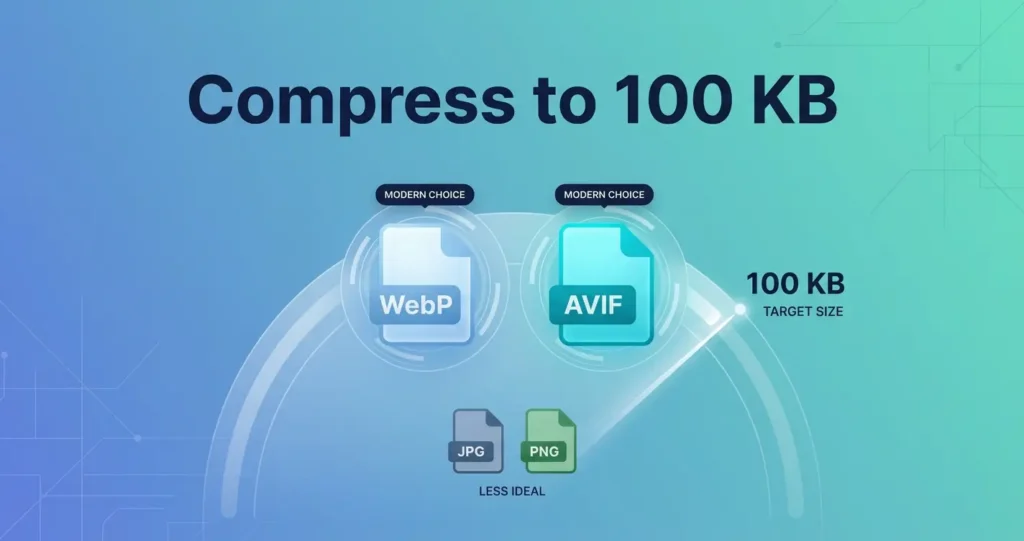
- Use JPG or WebP. PNG files rarely compress to 100 KB without severe quality loss.
- Check the before/after slider. Every Rupaa tool has one. If quality looks bad, bump the target size up 20 KB.
Frequently asked questions
Can I compress a PNG to 100 KB?
Yes, but PNG is lossless by design, so hitting 100 KB means converting to JPG or WebP. Use the Compress tool and choose JPG or WebP as the output format.
Will the aspect ratio change?
No. Compressing doesn’t change the dimensions or aspect ratio — it only reduces quality and file size. If you want to change dimensions, use Resize Image.
Can I compress a batch of images to 100 KB each?
Yes. Drop an entire folder into the tool. Every image is compressed independently with the same target size. Download the results as a ZIP.
Does compressing strip EXIF data?
Yes. Re-encoding the image removes all EXIF metadata, including GPS location and camera info. This is great for privacy.
Try it now
Open the Compress Image tool, drop your photos, enter 100 in the target size field, and download. Free, private, no upload.