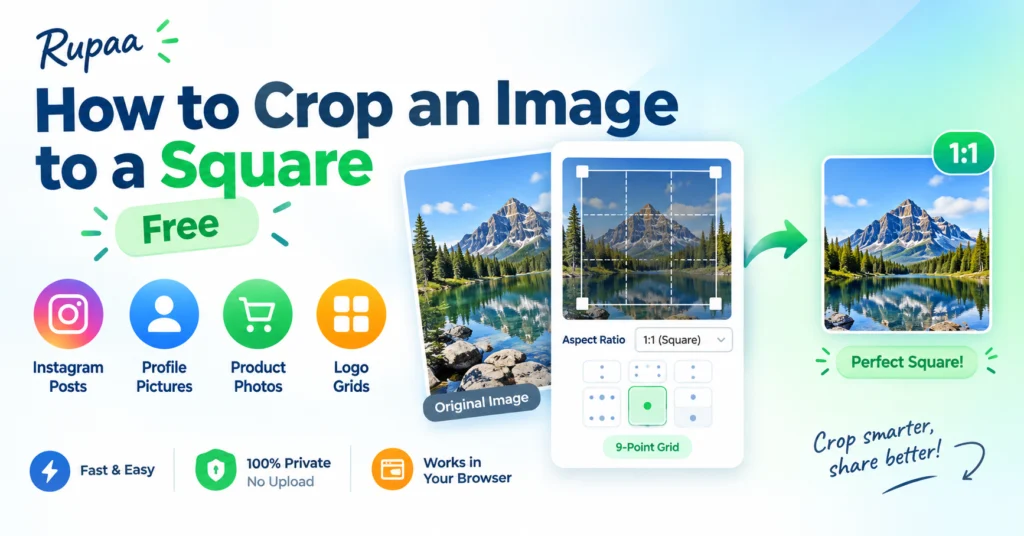
A square crop is one of the most useful image shapes. It works for Instagram posts, profile pictures, product thumbnails, and logo grids.
Here’s how to crop to a square in seconds — no software, no upload.
Why squares are so useful
- Instagram feed posts — the classic 1:1 layout.
- Profile pictures — square images crop cleanly to circles on most platforms.
- Product photos — sellers on Etsy, Amazon, and Shopify use square thumbnails for consistent grids.
- Logo grids — square logos align neatly on websites and presentations.
How to crop any image to a square
- Open our free Crop Image tool.
- Drop your image into the upload area.
- Set Aspect ratio = 1:1 (Square).
- Choose the 9-point grid position — center, top, bottom, or any corner.
- Click Process, then download.
Everything runs locally — your images never leave your device.
What does the 9-point grid do?
Most crops aren’t the same as the original image, so you have to decide which part stays. The 9-point grid lets you pick:
- Center — for portraits, product photos, and balanced compositions.
- Top — when the subject is in the upper half (sky, a face, a building).
- Bottom — when the subject is in the lower half (feet, ground, a signature).
- Corners — when the subject is off to one side.
Pick Center for most crops. Pick Top for portraits shot vertically.
Should you crop or resize?
These are often confused:
- Crop removes pixels from the edges. Aspect ratio changes.
- Resize scales the whole image. Aspect ratio stays the same.
If you want a square image from a landscape photo, you crop. If you want to make a square image smaller, you resize. If you want both (a small square), crop first, then resize.
Use Crop Image then Resize Image for the best control.
Common square sizes
- 1080 × 1080 — Instagram feed posts.
- 1000 × 1000 — Etsy listings.
- 2000 × 2000 — Amazon product images.
- 512 × 512 — app icons, avatars.
- 320 × 320 — profile pictures.
Frequently asked questions
Will cropping distort my image?
No. Cropping removes pixels, it doesn’t stretch them. The remaining content keeps its original proportions.
Can I crop many images to square at once?
Yes. Drop a folder and every image gets the same 1:1 crop with the same anchor position.
What’s the best position for a portrait?
Usually Top, so the face stays in the frame. Center works if the head is roughly in the middle of the photo.
Can I crop to a circle instead?
Not directly — our tool crops to rectangles. For circular crops, most platforms (Instagram, Slack) do it automatically when you upload a square avatar.
Does cropping remove EXIF data?
Yes. Every Rupaa tool re-encodes the image, which strips metadata.
Try it now
Use Crop Image to trim any photo to a perfect square. Free, private, no upload.