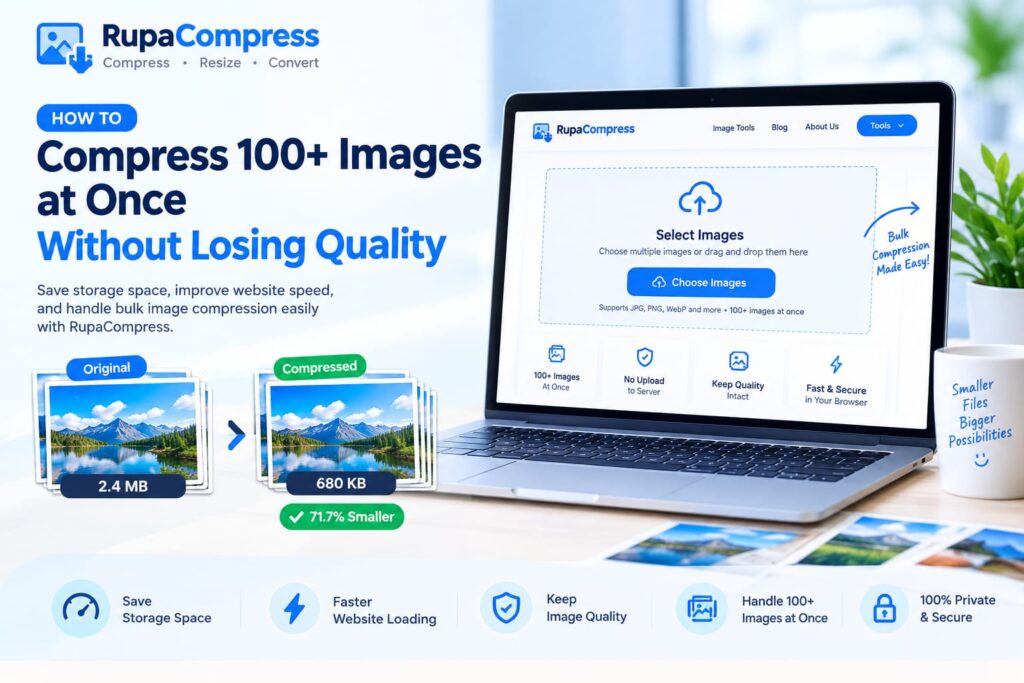
Managing digital assets for a growing website, an e-commerce store, a photography portfolio, or a digital marketing campaign is an ongoing battle against storage bloat and slow loading times. While compressing a single photo or product thumbnail is straightforward, the real administrative bottleneck begins when you need to process an entire directory containing hundreds of images. Most traditional online image compressors require users to upload files individually or restrict batch processing to a small number of pictures unless they upgrade to a paid subscription. As illustrated in our featured guide above, modern web technology can allow you to select and process more than 100 high-resolution photos directly in your browser, reducing large files from megabytes to smaller kilobyte-sized images while preserving as much visual quality as possible. In this comprehensive guide, we will explore why batch processing is essential for modern webmasters, the limitations and privacy considerations of cloud-based processing, and a simple workflow for compressing over 100 images at once using local browser-based tools. Whether you manage an online store with hundreds of product photographs, maintain a photography portfolio, publish regular blog posts, or optimize website assets for search engines, bulk image compression can help streamline your workflow and reduce unnecessary file sizes.
The Challenge of Bulk Image Optimization
When launching a new blog category, migrating an online storefront, or archiving event photography, you may encounter folders containing 100 to 500 individual graphics. Processing these files manually using desktop software or restricted online tools presents three major obstacles. First, manual processing wastes valuable time. Opening, resizing, adjusting quality, and saving hundreds of files individually can consume hours that would be better spent on creative or business tasks. Second, server-based online bulk tools require upload bandwidth. Transferring gigabytes of original photography to a remote web server can take considerable time and may result in server timeouts or browser errors when connections are unstable. Third, commercial cloud tools may impose file-count limits or paid subscription requirements. These restrictions can frustrate users who need to optimize large batches quickly. A more efficient alternative is browser-based local batch processing, such as the image tools available at RupaaCompress. Modern web technologies, including client-side JavaScript and the HTML5 Canvas API, can perform image-processing operations using your computer’s own processor and memory. When the relevant tool genuinely processes images locally, your selected files do not need to be uploaded to a remote server. This reduces exposure to third-party storage and eliminates upload queues for the image-processing operation. The actual number of images that can be handled simultaneously depends on the tool’s capabilities, your browser, and your device’s available memory.
Step-by-Step Guide: How to Bulk Compress 100+ Images at Once
Follow this four-step workflow to optimize large folders of images efficiently.
Step 1: Select Your Images or Folder. Gather your high-resolution photographs into a folder on your computer. Visit the RupaaCompress image tools workspace and open the Compress Image tool. Select or drag multiple supported image files into the browser’s drop zone. If folder selection is supported, you can select an entire directory; otherwise, select more than 100 files together using your file manager.
Step 2: Configure Compression Settings. Adjust the image-quality slider or choose a suitable compression preset according to your desired output size and visual quality. If the tool supports target file sizes, automated renaming patterns, or SEO-friendly filenames, configure those options before processing. Meaningful filenames can help organize your images for web publishing, although filenames alone do not guarantee better search rankings.
Step 3: Process Locally in Your Browser. Start the compression process and allow your computer’s processor to optimize the selected files. With genuine client-side processing, the images do not need to travel over the internet to a remote server. Processing time depends on the original file sizes, image dimensions, compression settings, number of files, and available system resources. If your browser becomes slow, divide the batch into smaller groups.
Step 4: Download Your Optimized ZIP Archive. When processing is complete, download the compressed files. If ZIP export is supported, you can bundle the entire batch into a single archive for convenient storage and transfer. Compression can substantially reduce file sizes—in some cases by more than 70%—but the results depend on the source images, file format, and compression settings. Lossy compression may reduce image quality, so inspect sample outputs before processing an important collection. For maximum quality retention, choose appropriate settings and compare the compressed files with the originals.
Why Local Batch Processing Improves Your Workflow
Browser-based bulk image compression can provide several advantages for digital creators, webmasters, e-commerce businesses, and photographers. Smaller image files can reduce storage requirements and help websites load faster, particularly when product galleries, blog posts, and landing pages contain many large photographs. Optimized images may also improve the user experience on mobile devices and slower internet connections. Local processing provides an additional privacy advantage because files can remain on your device instead of being transferred to an external image-processing server, provided the tool is genuinely implemented for client-side processing. This can be useful when handling confidential client galleries, unreleased product designs, or commercial photography. However, local processing alone does not guarantee full compliance with privacy laws such as the EU General Data Protection Regulation (GDPR); compliance depends on the complete data-processing workflow. To learn more, explore our guide to secure local image compressors for client photos. You can also discover how to remove EXIF data from photos to reduce the risk of sharing embedded metadata, including location information, and read our guide to the best image format for websites in 2026 to understand modern image formats such as WebP. Combining suitable compression settings, appropriate file formats, and organized filenames can help make image libraries easier to manage while supporting website performance and efficient content publishing.
Frequently Asked Questions (FAQs)
1. Is there a strict limit to how many images I can compress at once? There is no universal limit for all local browser-based image compressors. Some tools may support 100, 200, or more images in one batch, while others impose their own restrictions. Your computer’s available RAM, browser capabilities, and the size of the selected images also affect performance. Check the particular tool’s supported batch size before processing a large collection.
2. Will compressing large batches of photos slow down my computer? Image compression uses your computer’s processing power and memory, so large batches can temporarily increase CPU and RAM usage. Modern browsers can handle many image-processing tasks efficiently, but processing hundreds of high-resolution photographs may take longer than a few seconds or cause performance issues on devices with limited resources. For smoother operation, process smaller batches when necessary.
3. Do I need an internet connection to use the batch compressor? You may be able to continue processing offline after the RupaaCompress tool page has fully loaded, provided its compression engine and all required resources are available locally and the feature does not depend on external network requests. Offline operation should be tested rather than assumed. For privacy-sensitive files, confirm that image processing occurs locally and that the tool does not upload the original images to an external server.