If you’ve ever tried to open an iPhone photo on a Windows PC or older Android phone, you’ve probably seen the words “HEIC not supported.” HEIC is Apple’s default photo format since iOS 11 — smaller and higher quality than JPG, but far less compatible with the rest of the world.
The good news: converting HEIC to JPG takes just a few seconds. And you don’t need to install anything or upload your photos to a stranger’s server. We’ll show you how to do it right here in your browser.
What is HEIC?
HEIC stands for High Efficiency Image Container. It’s based on the HEVC video codec (the same one used for 4K video) and produces files roughly 50% smaller than JPG at the same visual quality. Apple switched to HEIC in 2017 because it lets you store more photos in the same storage space.
Why HEIC causes problems
- Windows — doesn’t open HEIC natively without a paid extension.
- Android — most versions can’t decode HEIC.
- Older browsers — Firefox and older versions of Chrome can’t read HEIC.
- Websites — most CMS platforms reject HEIC uploads.
- Email — most email clients show HEIC as a broken attachment.
How to convert HEIC to JPG (free)
The fastest way is our free Convert Image tool. Here’s how:
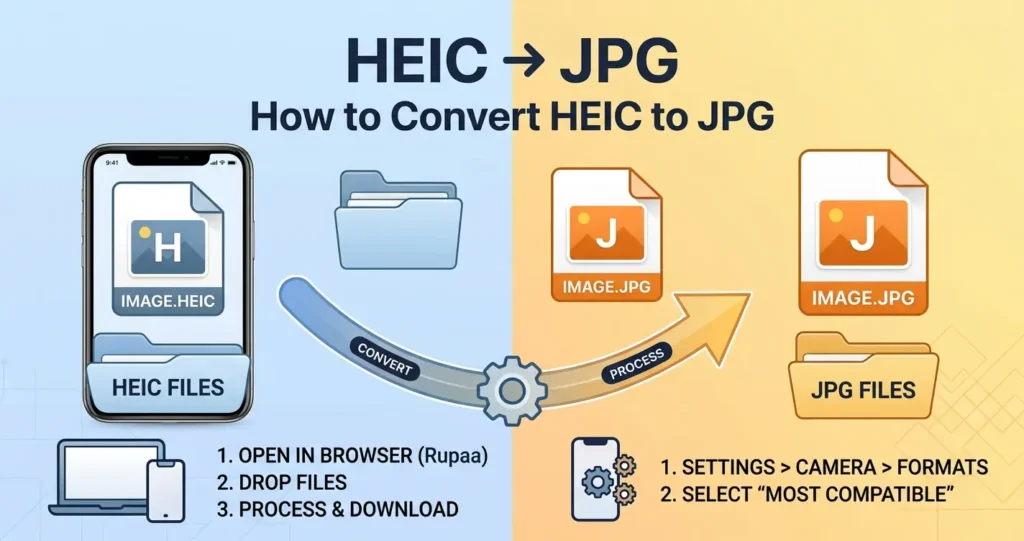
- Open the Convert tool in your browser.
- Drop your HEIC files — or an entire folder — into the upload area.
- Choose JPG as the output format.
- Click Process, then download the results.
Everything runs locally in your browser. Your photos never leave your device, and you don’t need to create an account or pay anything.
How to save iPhone photos as JPG automatically
If you take a lot of iPhone photos and want them saved as JPG by default, you can change your camera settings:
- Open Settings → Camera → Formats.
- Select Most Compatible instead of High Efficiency.
- New photos will save as JPG.
Note: this only affects new photos. Existing HEIC files stay HEIC. Use the Convert tool for those.
When to keep HEIC
HEIC is great when:
- You’re storing photos on your iPhone only.
- You’re using iCloud Photos with Apple devices.
- Storage space is tight and you want smaller files.
If you’re sharing with anyone outside the Apple ecosystem, convert to JPG or WebP first.
Frequently asked questions
Does converting HEIC to JPG reduce quality?
Slightly. JPG is a lossy format, so there’s a small quality drop. But at quality 85–90, the difference is invisible to the human eye. And since JPG is universally compatible, the trade-off is worth it.
What about converting HEIC to PNG?
PNG is lossless, so the quality stays perfect — but the file size can be 3–5× larger than the original HEIC. For photos, JPG or WebP are better choices.
Can I convert HEIC to WebP?
Yes. WebP is even smaller than JPG at the same quality and is supported by every modern browser. Use the Convert tool and select WebP as the output.
Do I need to install anything?
No. Rupaa works entirely in your browser. No apps, no extensions, no signups.
Try it now
Drop your HEIC photos into the Convert Image tool and get JPGs in seconds. Free, private, no upload required.