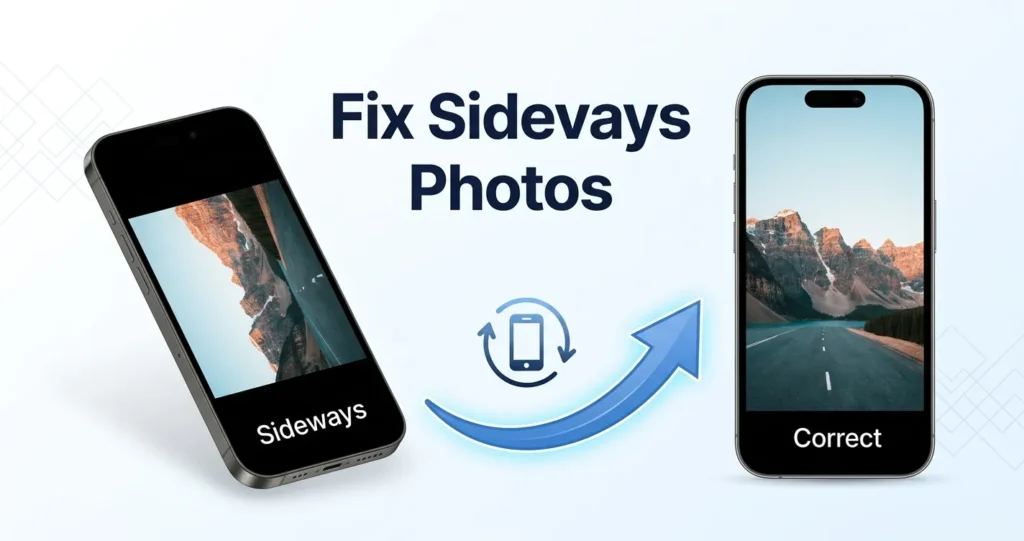
You take a photo on your phone. It looks fine. You upload it to a website, an email, or a form — and it appears sideways.
This isn’t a bug. It’s a quirk of how phone cameras store orientation data. Here’s what’s happening and how to fix it for good.
What’s actually happening
Phone cameras don’t rotate the pixels when you take a photo. Instead, they save the photo in the camera’s natural orientation (usually landscape) and add a small piece of metadata — the EXIF orientation tag — that says “this image should be displayed rotated 90° clockwise.”
Photo viewers that respect the tag show the photo the right way up. But many websites, CMS platforms, and older software ignore it. That’s why a photo looks fine on your phone and sideways everywhere else.
Which apps ignore EXIF orientation?
It varies, but common examples include:
- Older versions of WordPress, Joomla, and other CMS platforms.
- Most email attachments on webmail clients.
- Some social media platforms when the image is re-encoded.
- Many online forms and application portals.
- Some PDF generators and print-on-demand services.
How to permanently fix the orientation
The fix is to rotate the pixels themselves and save the file — not just change the EXIF tag. Once the pixels are physically rotated, the image displays correctly everywhere, regardless of whether the reader respects EXIF.
- Open our free Rotate & Flip tool.
- Drop your sideways photo in.
- Choose a rotation angle: 90° CW, 90° CCW, or 180°.
- Click Process, then download.
Rupaa re-encodes the image with the pixels physically rotated and strips the EXIF tag — so it’s correct in every viewer.
How to fix a whole folder at once
If you have a folder of photos from a trip or event, all with the same orientation problem:
- Drop the whole folder into Rotate & Flip.
- Pick the rotation angle.
- Process.
- Download as a ZIP.
Every file gets the same correction. No repeated steps.
Rotate vs flip — what’s the difference?
- Rotate turns the image around a point (usually the center).
- Flip mirrors the image, like a reflection.
If the subject looks correct but upside down — you need a rotation. If the image looks mirrored (text is backwards, faces look “off”), you need a flip.
Our tool handles both, and you can combine them.
What about the EXIF orientation tag?
When you use Rotate & Flip, the EXIF tag is stripped entirely. The pixels are rotated, so no tag is needed. The image displays correctly regardless of the viewer.
Frequently asked questions
Why do only some of my photos look sideways?
It depends on how you held the phone. Photos taken in landscape orientation usually have no issue. Photos taken in portrait orientation need the orientation tag to display correctly.
Will rotating reduce quality?
Rupaa rotates by 90°, 180°, or 270° — these are lossless rotations (each pixel is exactly preserved). Custom angles do interpolate, but 90° increments don’t.
Can I fix the orientation without re-encoding?
You can edit the EXIF tag with specialized tools, but many platforms ignore the tag. Re-encoding is the more reliable fix.
Does rotation affect the file size?
Slightly. The new file is re-encoded, so the size depends on the quality setting you choose. Use quality 85–90 for photos.
Will it work on my phone?
Yes. Rupaa works on any modern mobile browser. Rotate directly on your phone before uploading anywhere.
Try it now
Use Rotate & Flip to fix a sideways photo — or a whole folder — in seconds. Free, private, no upload.